
OVERVIEW
FEATURES
INTEGRATION
SUPPORT
This is a complete reference for every element available in the WhatsApp Forms builder, grouped the same way they appear in the Elements panel: Basic Elements, Input Fields, and Form Actions.
Most Input Fields share the same core settings:
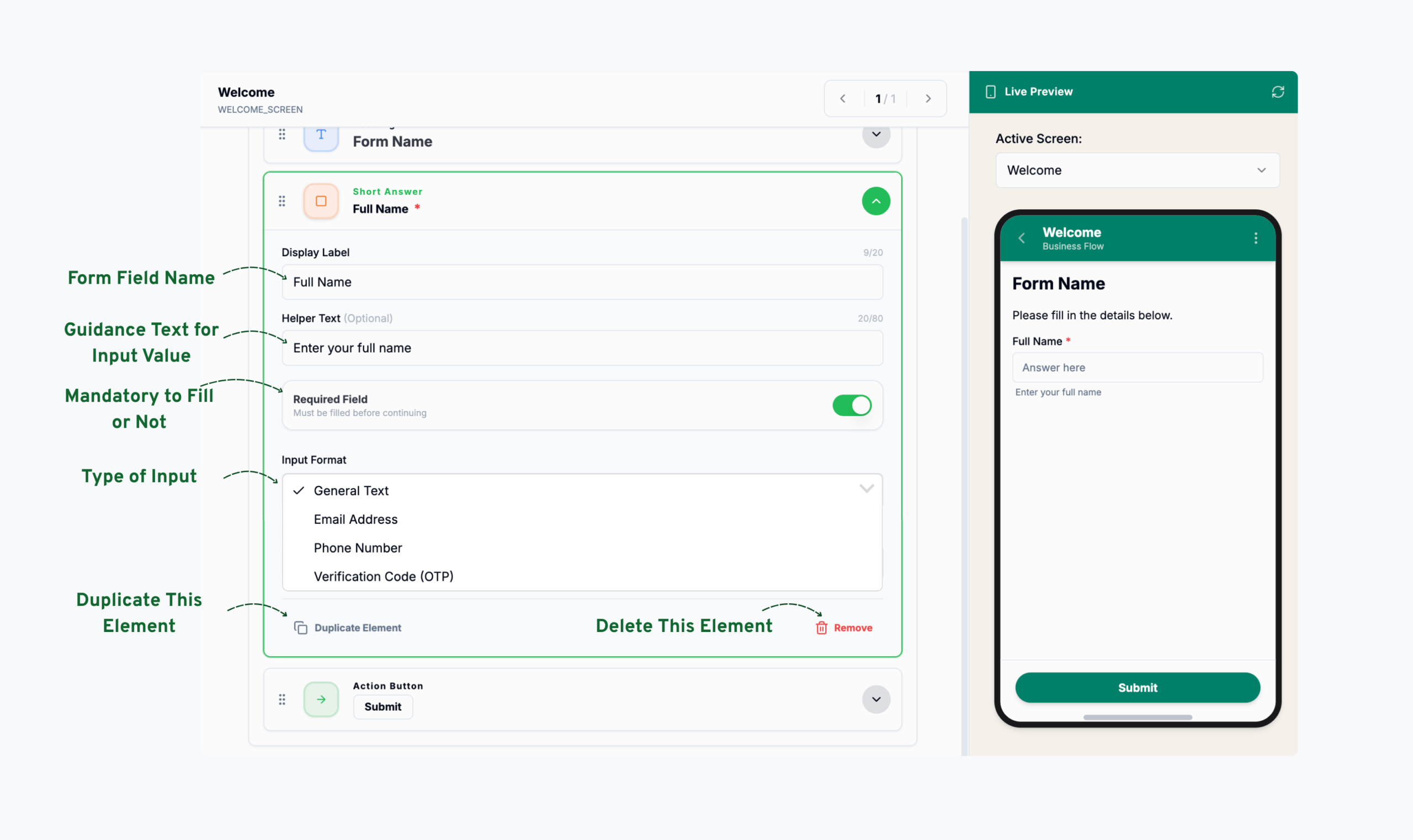
Every element also has Duplicate Element and Remove actions at the bottom of its settings panel.
These add text content to a screen — they don’t collect answers.
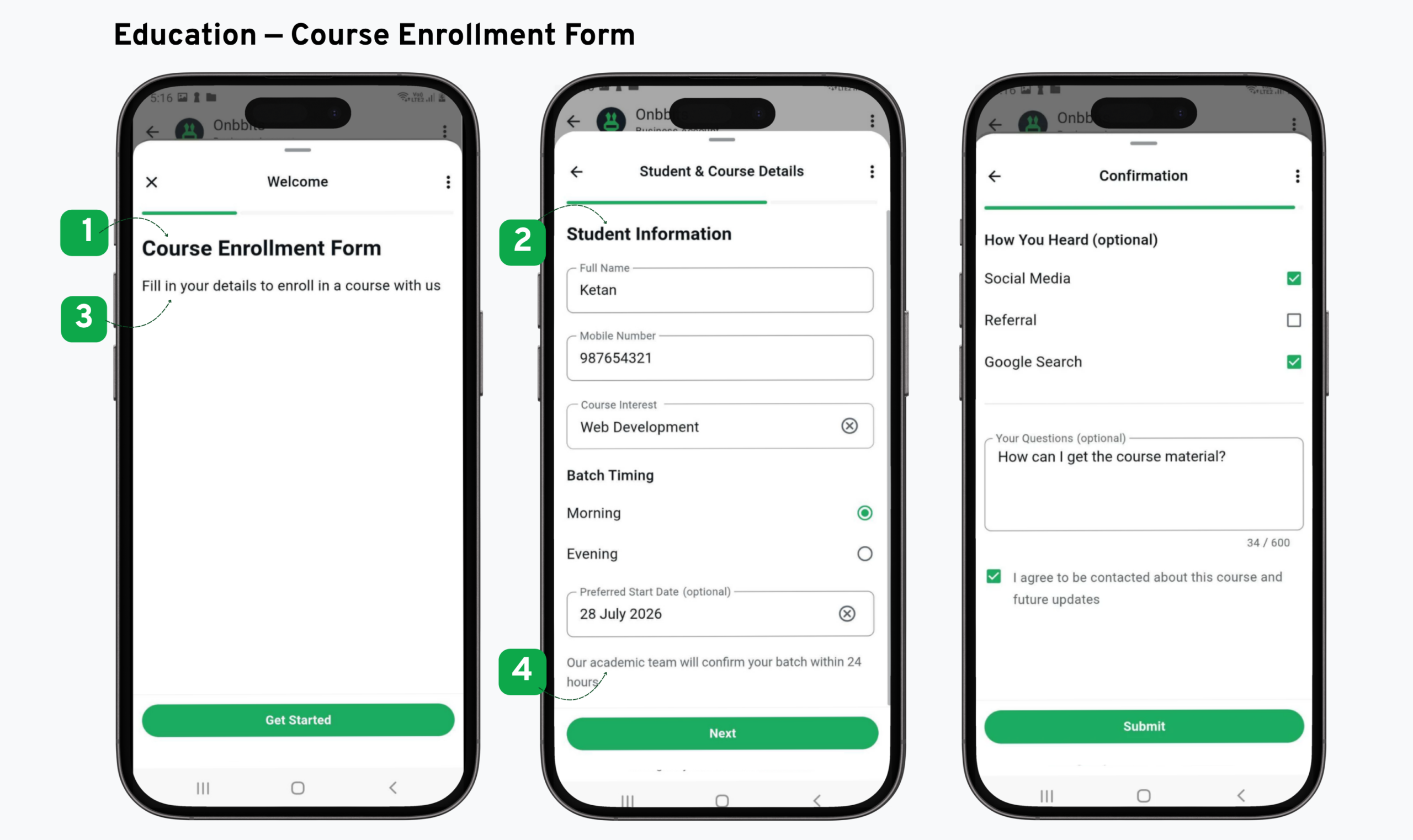
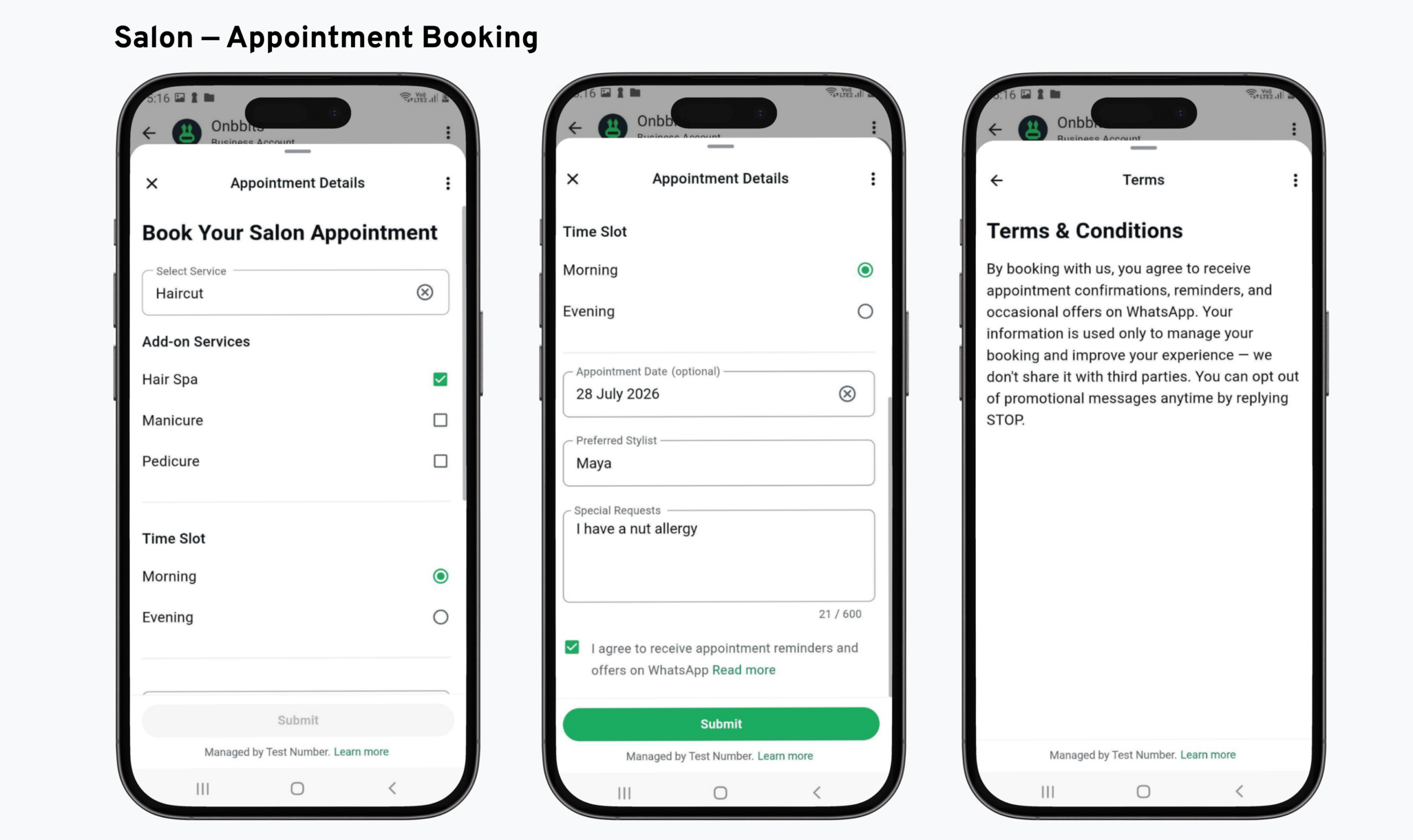
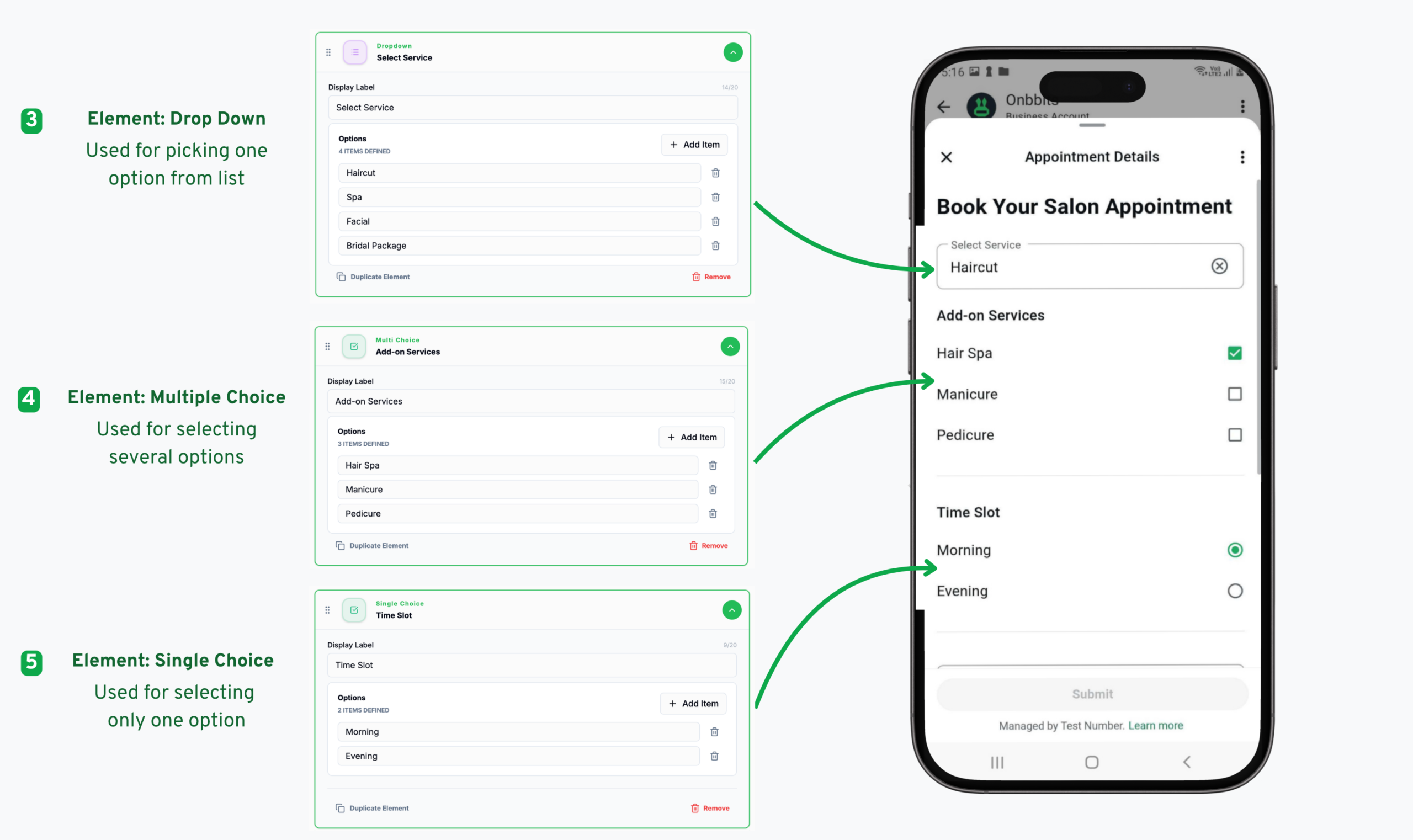
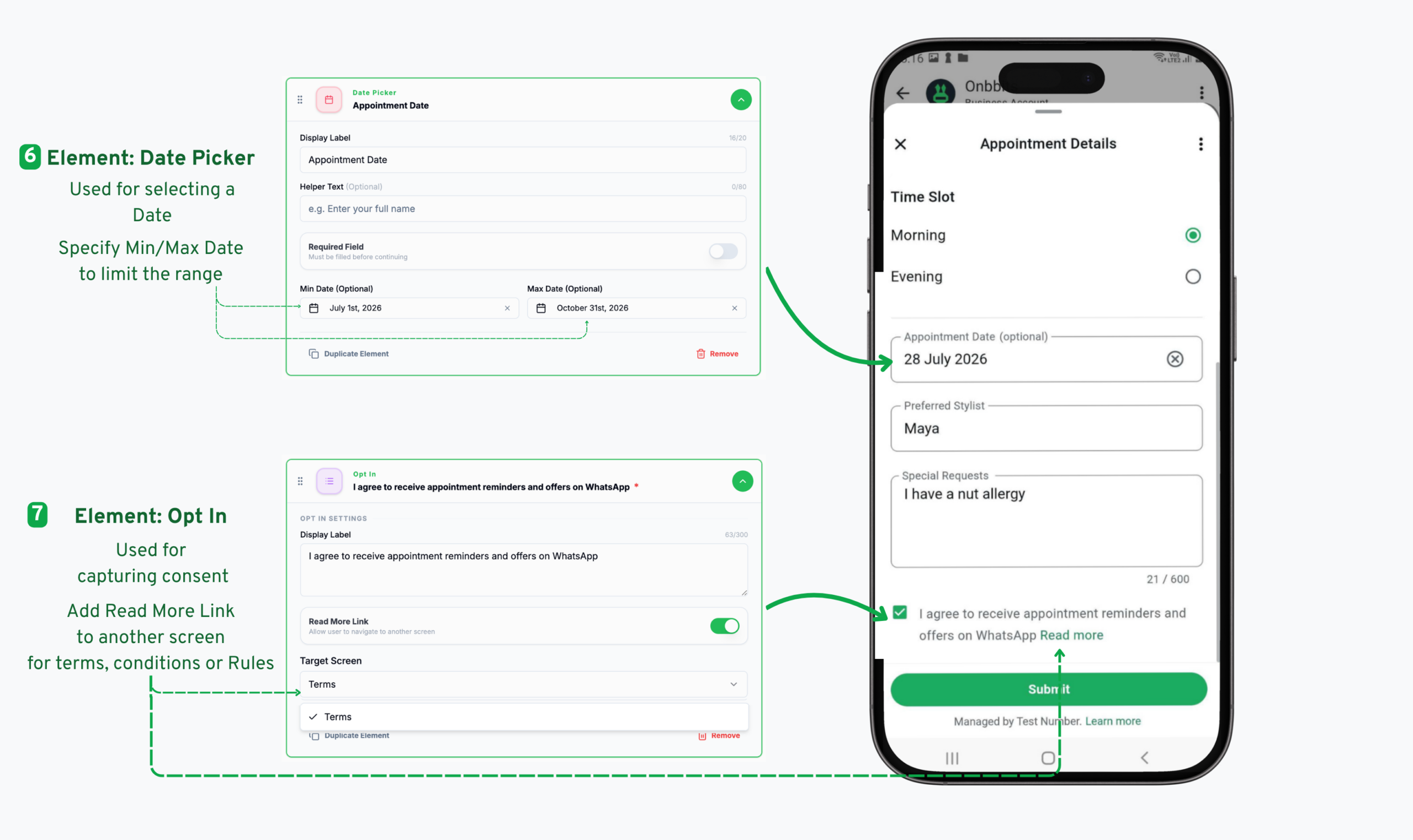
We’ll walk through how each form element works using the example of a salon appointment booking form
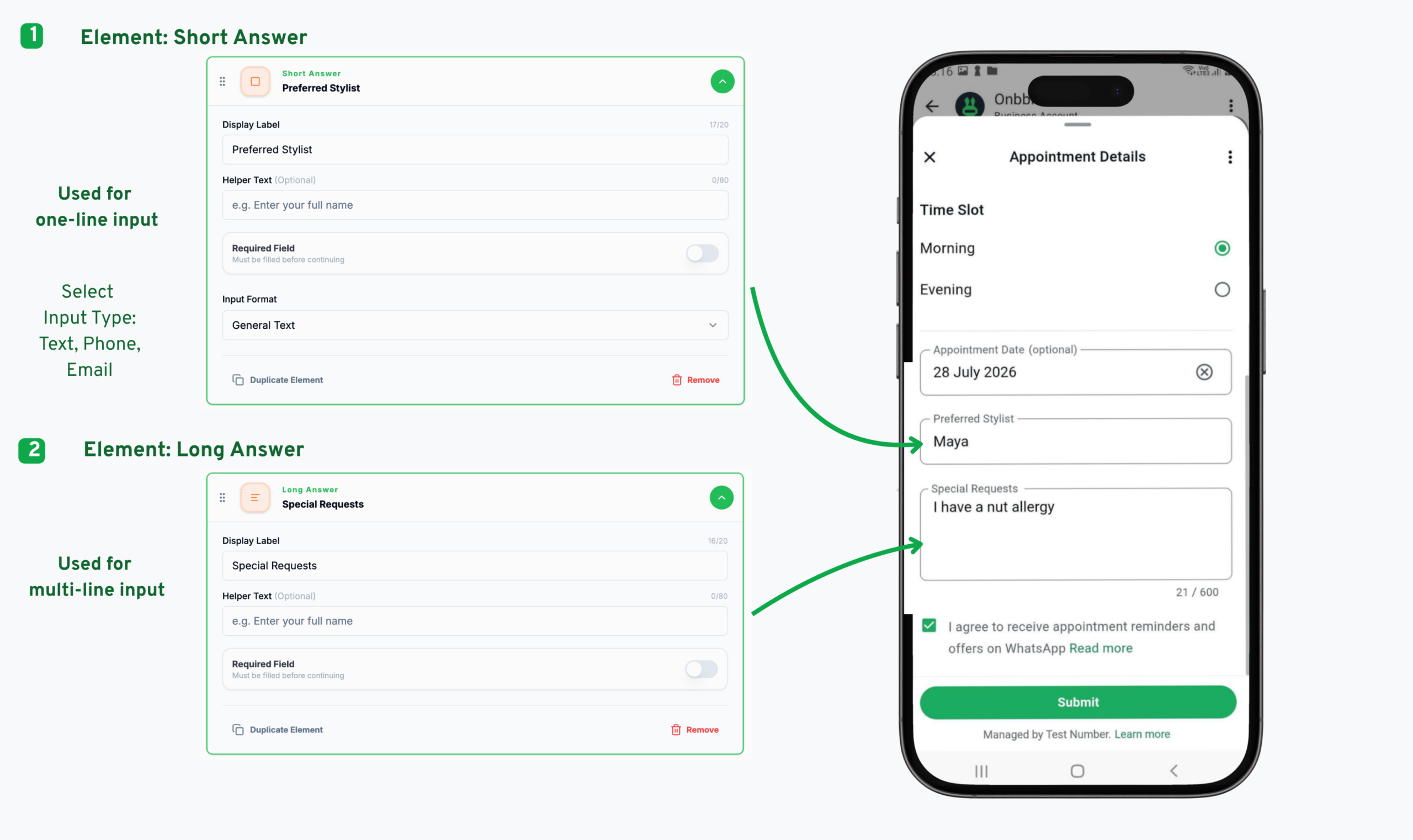
Short Answer: A one-line text input. In addition to the common settings, it includes an Input Format dropdown (for example, General Text) to control the expected input type.
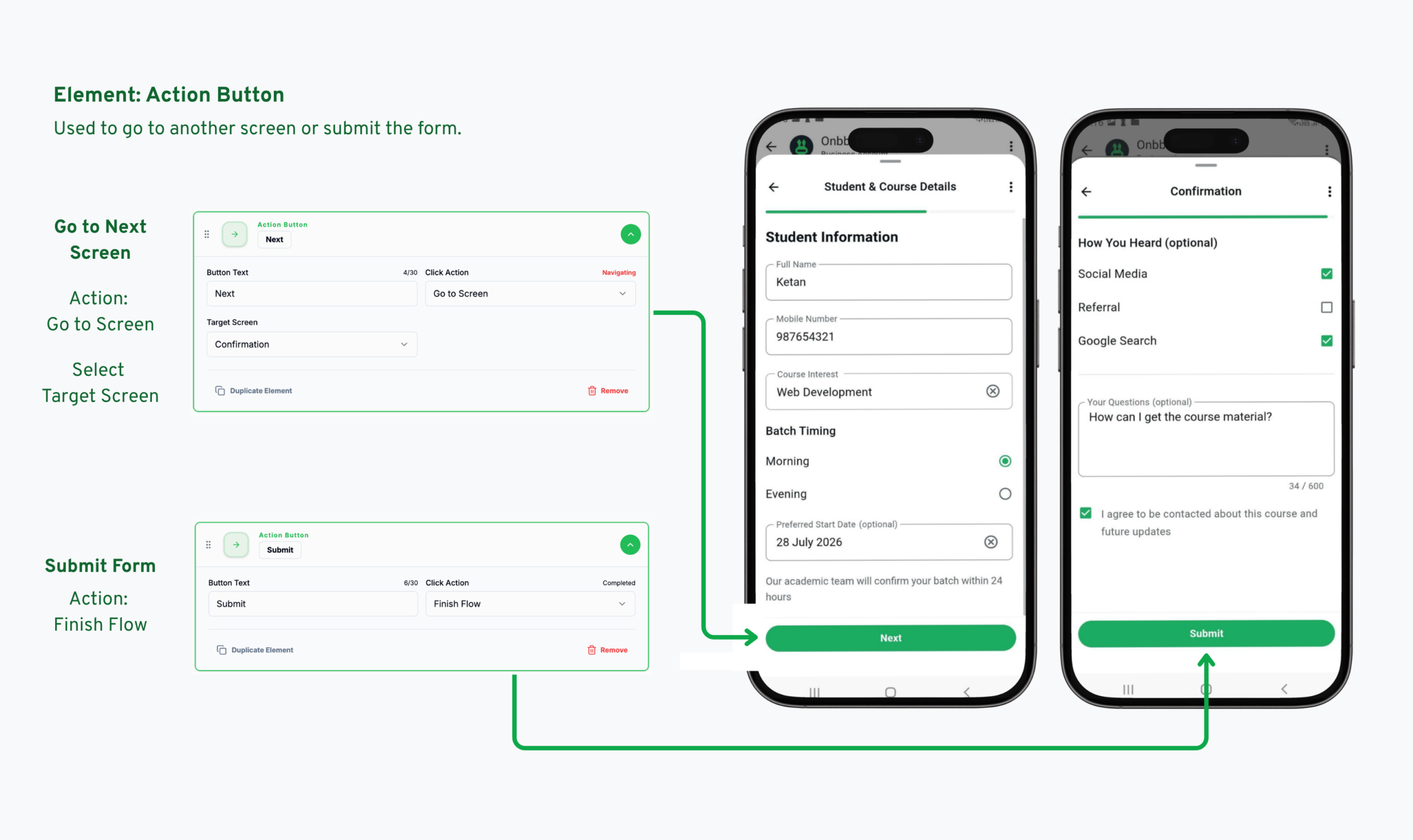
Action Button: The button a customer taps to move forward. It includes Button Text (the label shown on the button) and a Click Action setting. When set to Go to Screen, a Target Screen dropdown appears, letting you choose which screen the button should navigate to — this is how you connect multiple screens in a Form.
Our support team is ready to assist you.
© 2026 ONBBITS. All rights reserved.