
This guide walks you through inviting a new Agent to your Onbbits app, turning their access on or off, and removing them completely when they’re no longer part of your team.
Before You Begin
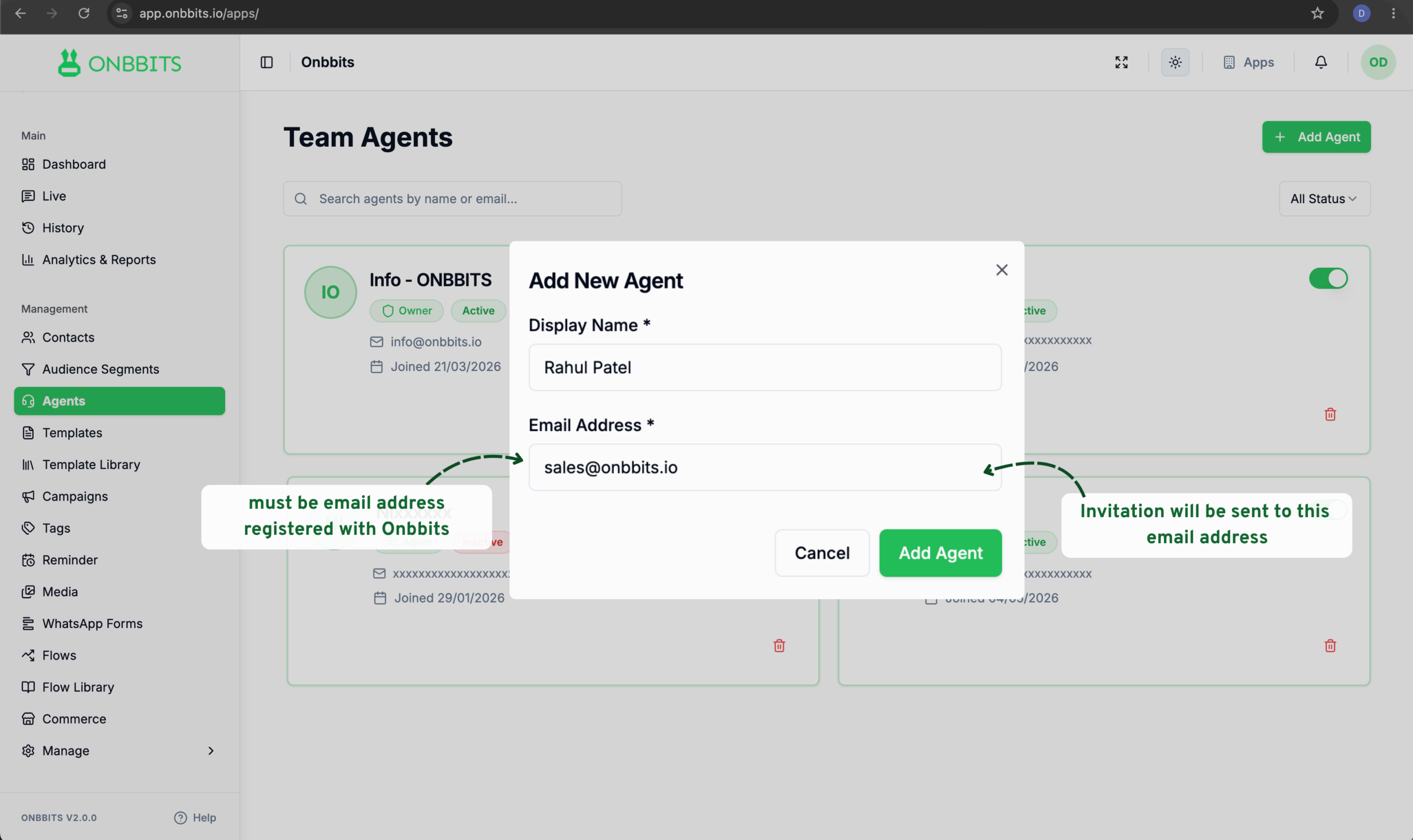
Add a New Agent
- In the left sidebar, under Management, click Agents.
- Click + Add Agent in the top right corner.
- Enter the agent’s name in the Display Name field.
- Enter the email address registered with Onbbits.
- Click Add Agent to send the invite.
After you add an Agent, they’ll receive an email with a link to accept the invitation. Their card shows as Inactive until they accept — once they do, it switches to Active and they can log in.
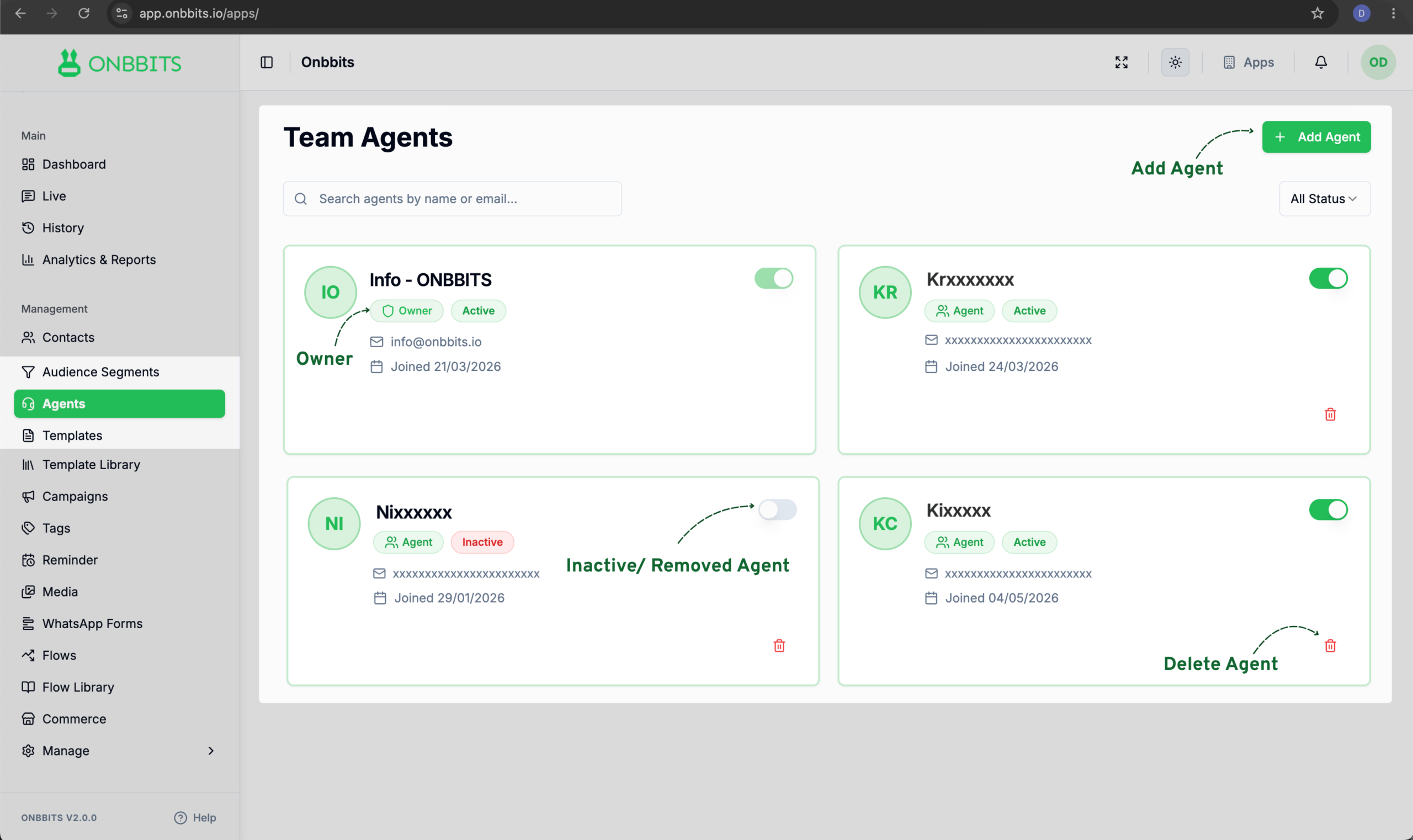
Enable or Disable an Agent
- Find the Agent’s card in the list.
- Click the toggle switch next to their name.
- Toggled on (green): the Agent is Active and can log in and use the app.
- Toggled off (grey): the Agent is Inactive — they temporarily lose access of the App, but nothing they created is affected.
Delete an Agent
- Go to the Agents page.
- Find the card for the Agent you want to delete.
- Click the trash icon on their card.
- Confirm the deletion when prompted.
- They can no longer access the App.
Related Articles