
Create a Segment

This guide walks you through building a saved segment from your Tags, Attributes, and Fields, so it’s ready to use the next time you launch a campaign.
Before You Begin

Create a Segment

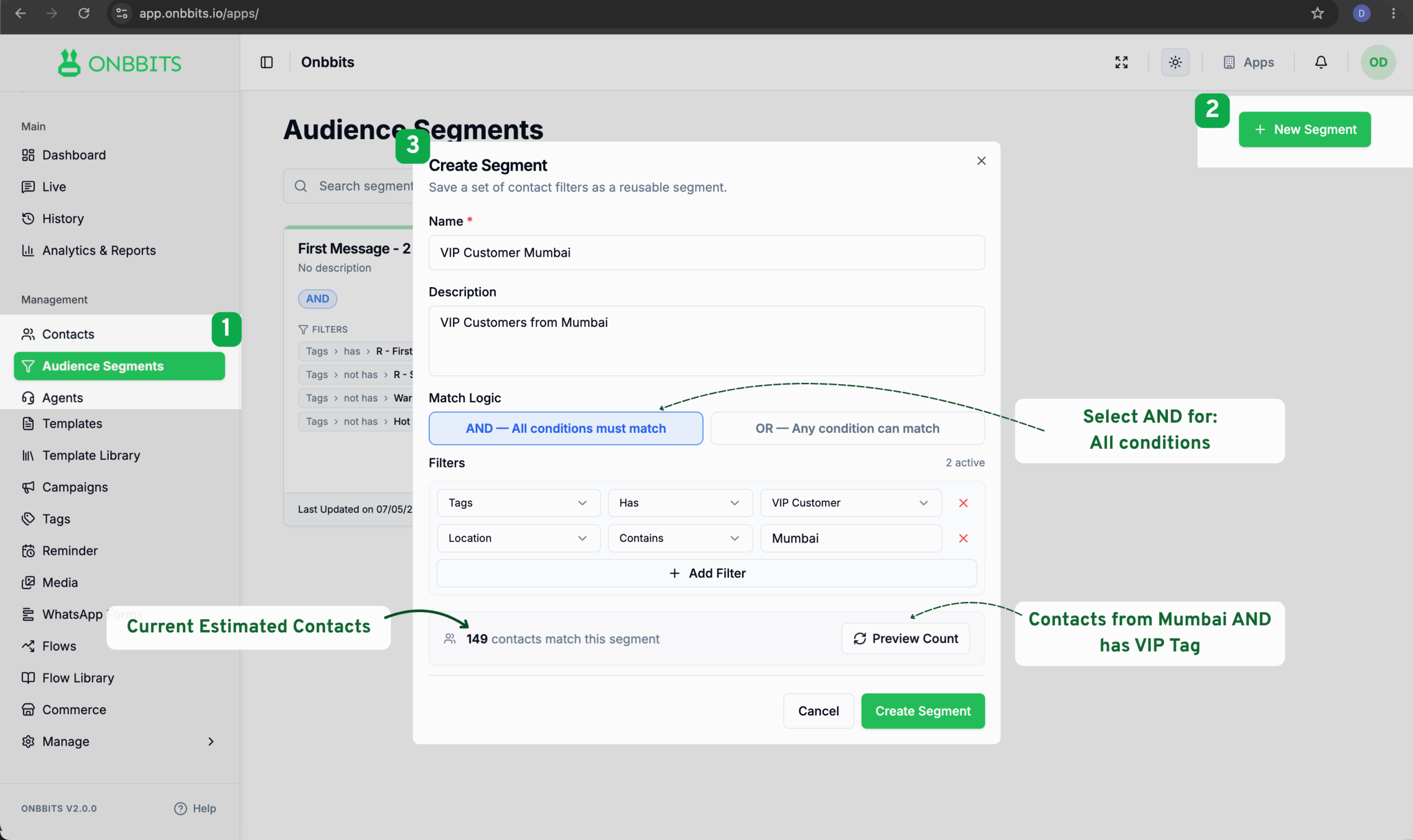
  1. In the left sidebar, click Audience Segments.
  2. Click + New Segment in the top right corner.
  3. In the Create Segment window, enter a name for your segment. You can also add an optional description to help you remember what it’s for.
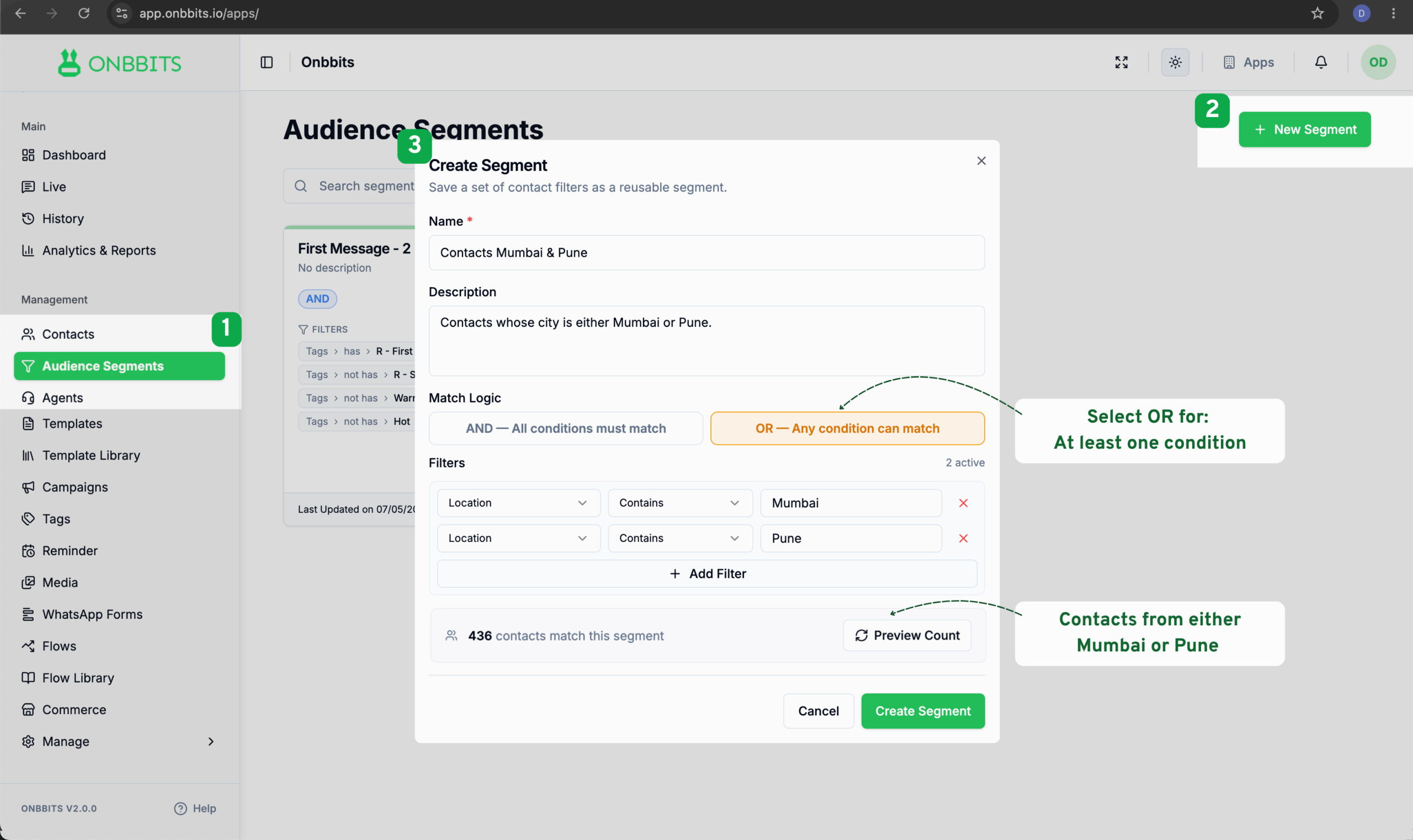
  4. Under Match Logic, choose how your filters should apply.
  5. AND — All conditions must match: a contact needs to meet every filter you add.
  1. OR — Any condition can match: a contact only needs to meet one of the filters.
  1. Under Filters, choose a Field (like a Tag, Attribute, or contact Field), a Condition (like “has,” “not has,” or “contains,” depending on the field type), and a Value.
  2. Click + Add Filter to add more conditions, repeating step 5 for each one.
  3. Click Preview Count to see how many contacts currently match your filters.
  4. Click Create Segment to save it.
Once saved, your segment is ready to use the next time you create a broadcast campaign, see Create a Broadcast Campaign for how to select it during the Select Audience step.
Your segment is saved and appears on the Audience Segments page, ready to select in future campaigns. When you apply it to a campaign, Onbbits matches your current contacts against the segment’s filters at that moment, so the audience always reflects who qualifies right now.
Related Articles

What Is Audience Segmentation?

Still need help?

Our support team is ready to assist you.

ONBBITS Help Doc v1.0