Set a Reminder

This guide walks you through scheduling a Reminder from a chat and cancelling one if your plans change.
Set a Reminder

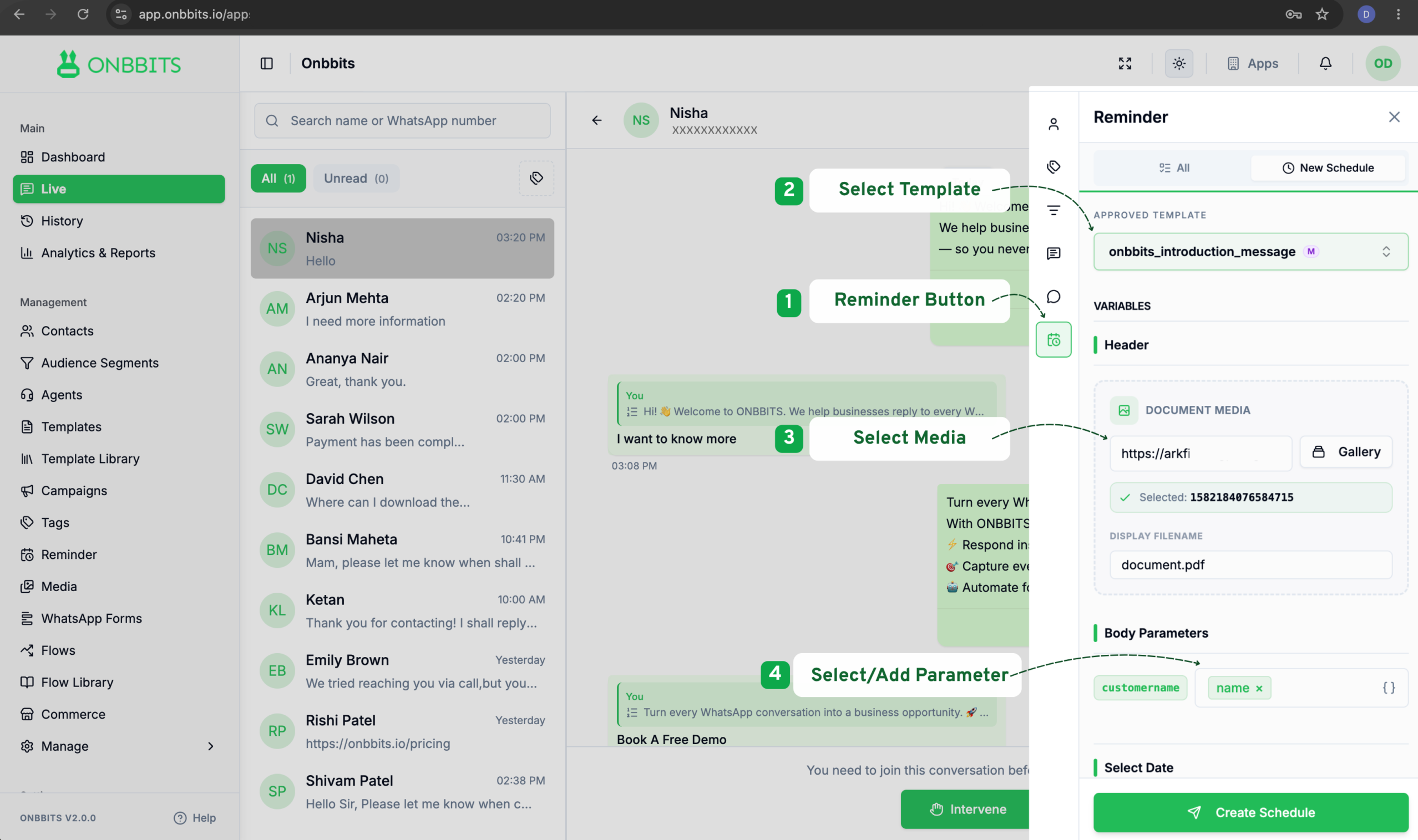
  1. Open the contact’s conversation in Live or History.
  2. In the right-side panel, click the Reminder (clock) icon to open the Reminder panel.
  3. Under Approved Template, select the template you want to send.
  4. If the template has a Header or Body Parameters, fill those in under Variables.
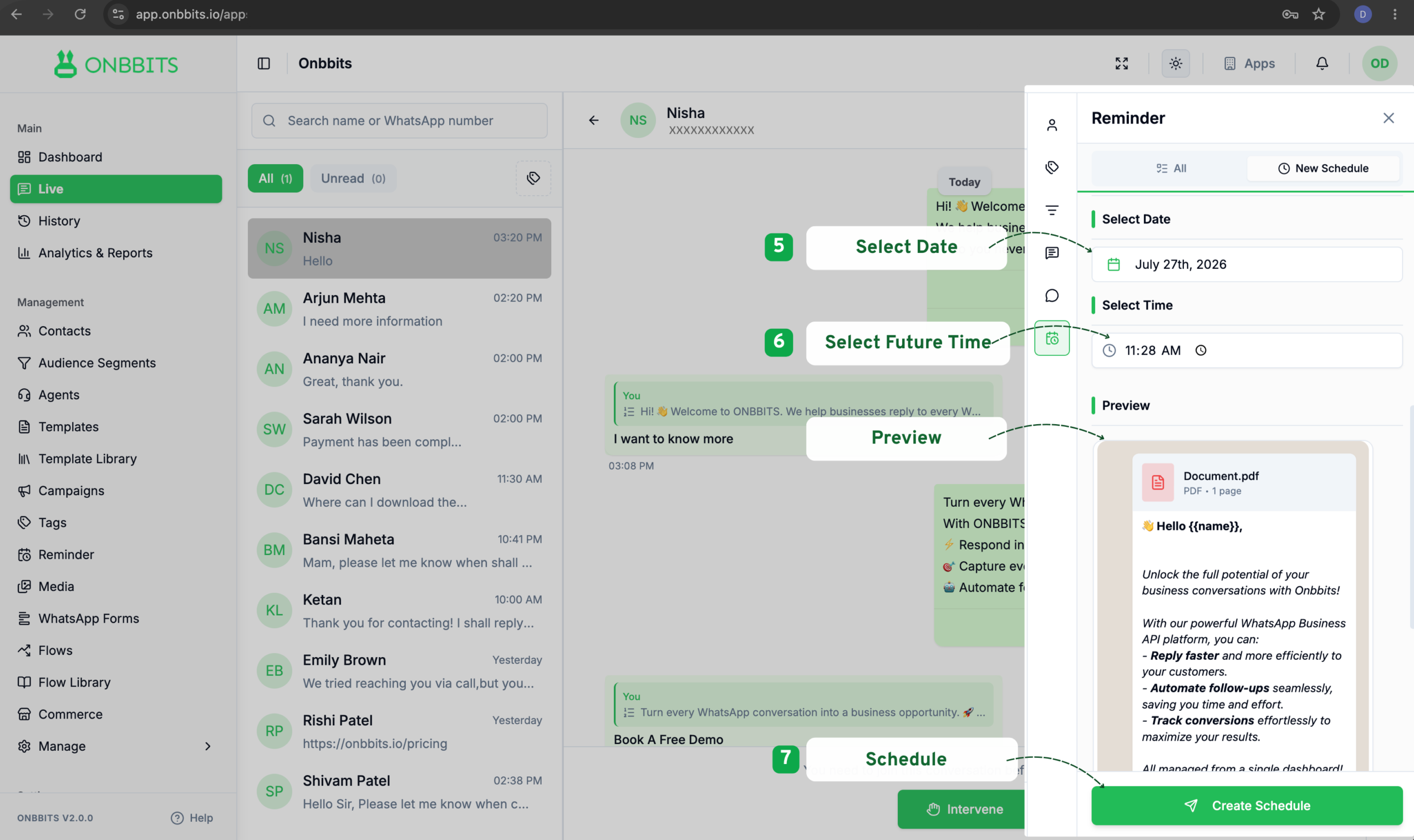
  1. Under Select Date and Select Time, choose when the message should be sent.
  2. Click Create Schedule

Cancel a Reminder

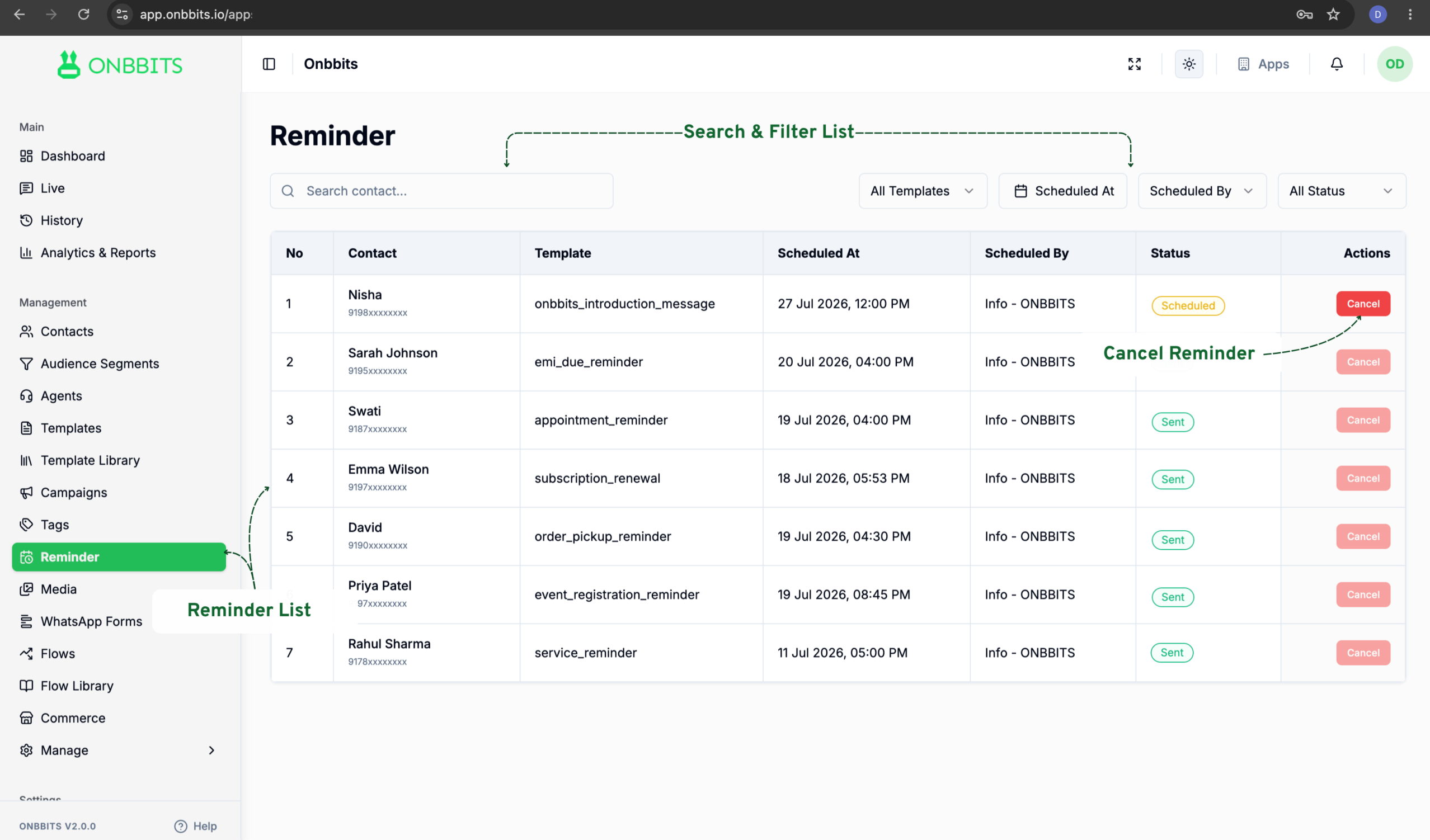
  1. In the left sidebar, click Reminder.
  2. Use the search bar or filters — All Templates, Scheduled At, Scheduled By, or All Status — to find the reminder you want to cancel.
  3. Click Cancel in the Actions column for that reminder.
Warning
Related Articles

What Is a Reminder?

Still need help?

Our support team is ready to assist you.

ONBBITS Help Doc v1.0