
Send a WhatsApp Template

Once a template is approved, you can send it to a contact from Live Chat, History, or Contacts. This guide covers the direct send flow.
Sending a Template

  1. Open Live Chat or History and open the contact you want to message.
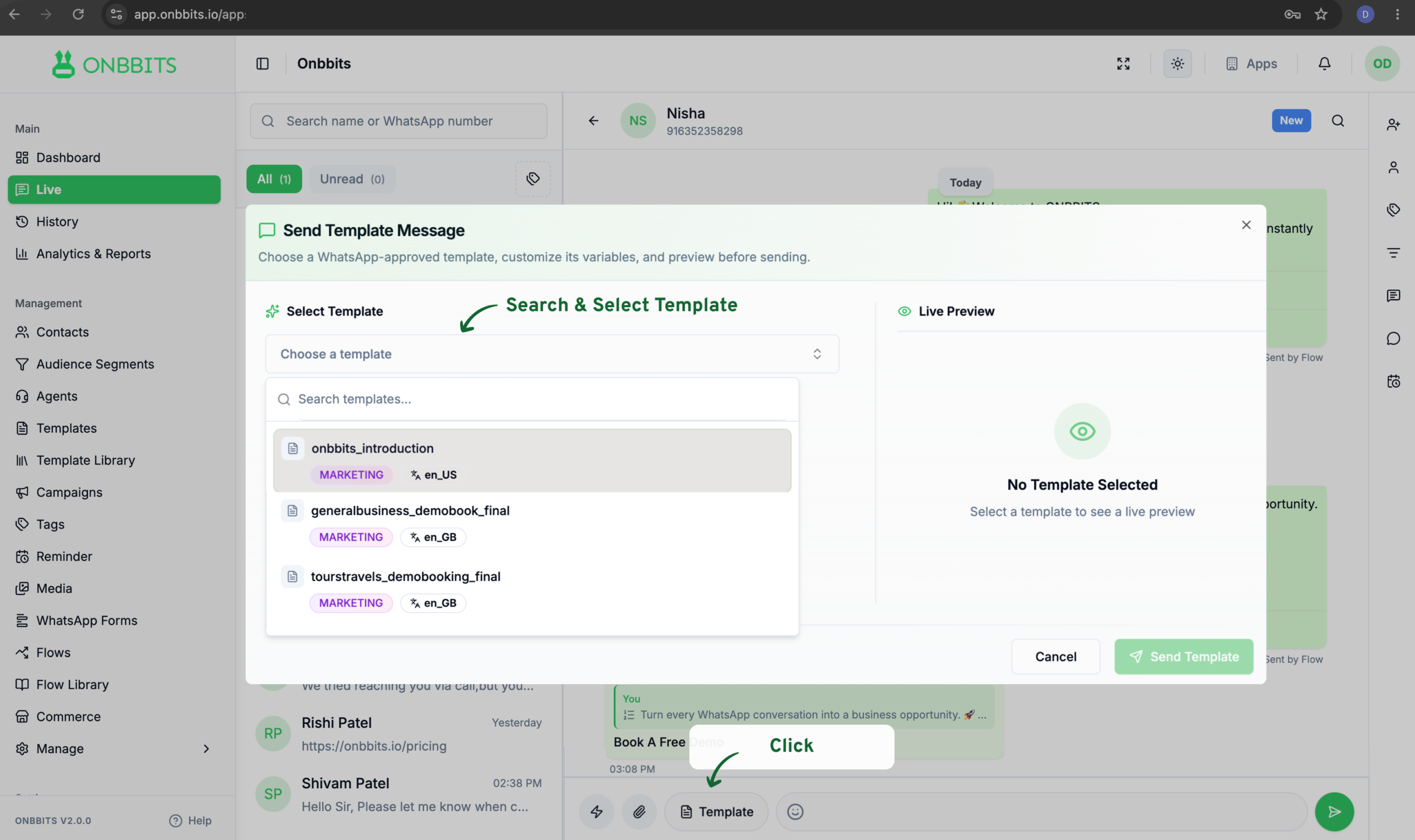
  2. Click the Template button.
  3. In the dialogue, select a template from the list of approved templates, or search by name or category. The template’s language is shown next to its name.
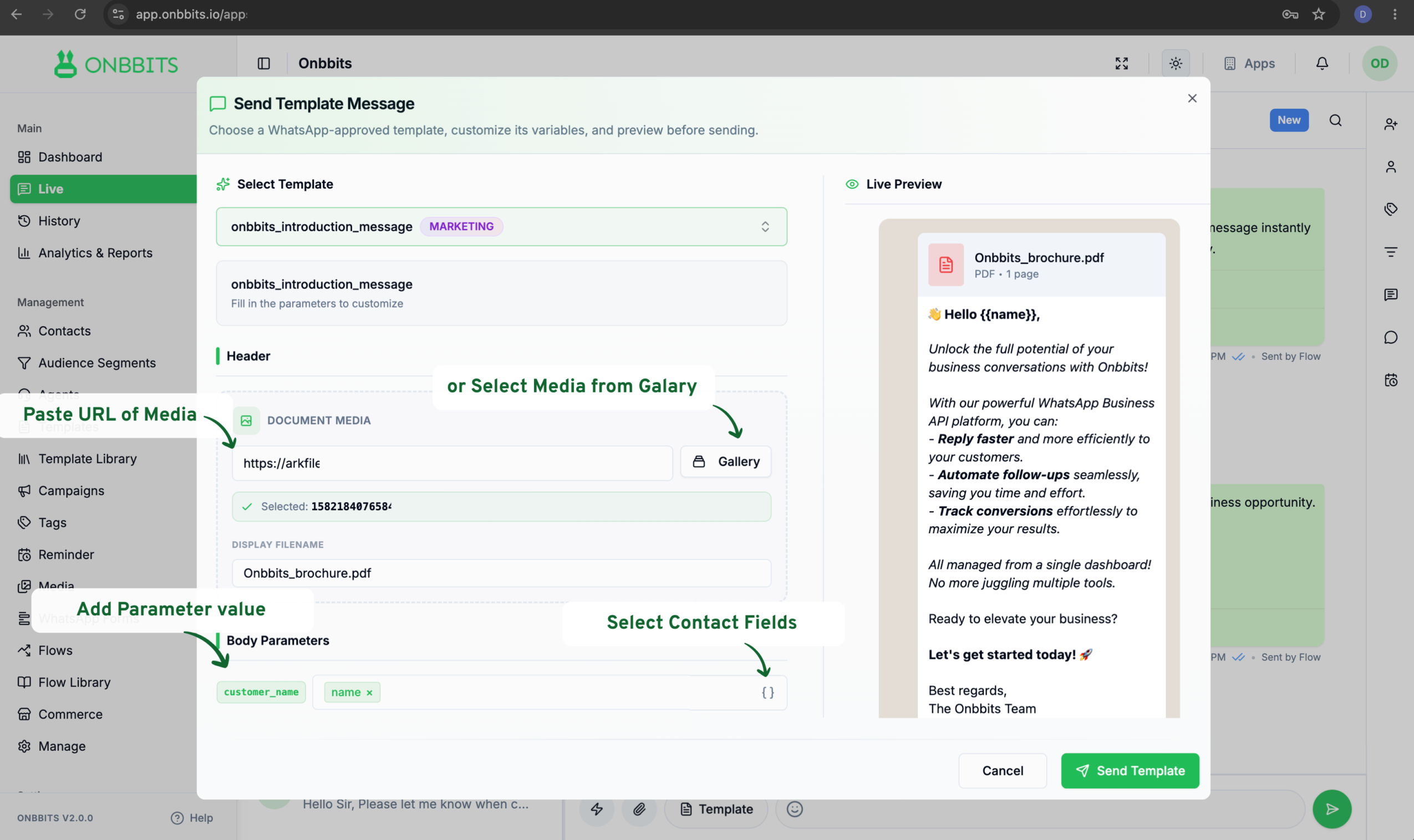
  1. If the template has a header, select the header media to attach.
  2. For each body parameter, choose a value from the dropdown — Name, Number, or Attributes — or type in a static value.
  3. Check the live preview to confirm the message looks right.
  4. Click Send.

Sending Templates via Campaigns, Flows, and Reminders

Besides sending one-to-one from Live Chat, History, or Contacts, Onbbits offers three other ways to send templates:

Related Articles

What Are Templates?

Template Categories & Approval Rules

Create & Edit a Template

Still need help?

Our support team is ready to assist you.

© 2026 ONBBITS. All rights reserved.