
Add & Manage Agents

This guide walks you through inviting a new Agent to your Onbbits app, turning their access on or off, and removing them completely when they’re no longer part of your team.
Before You Begin

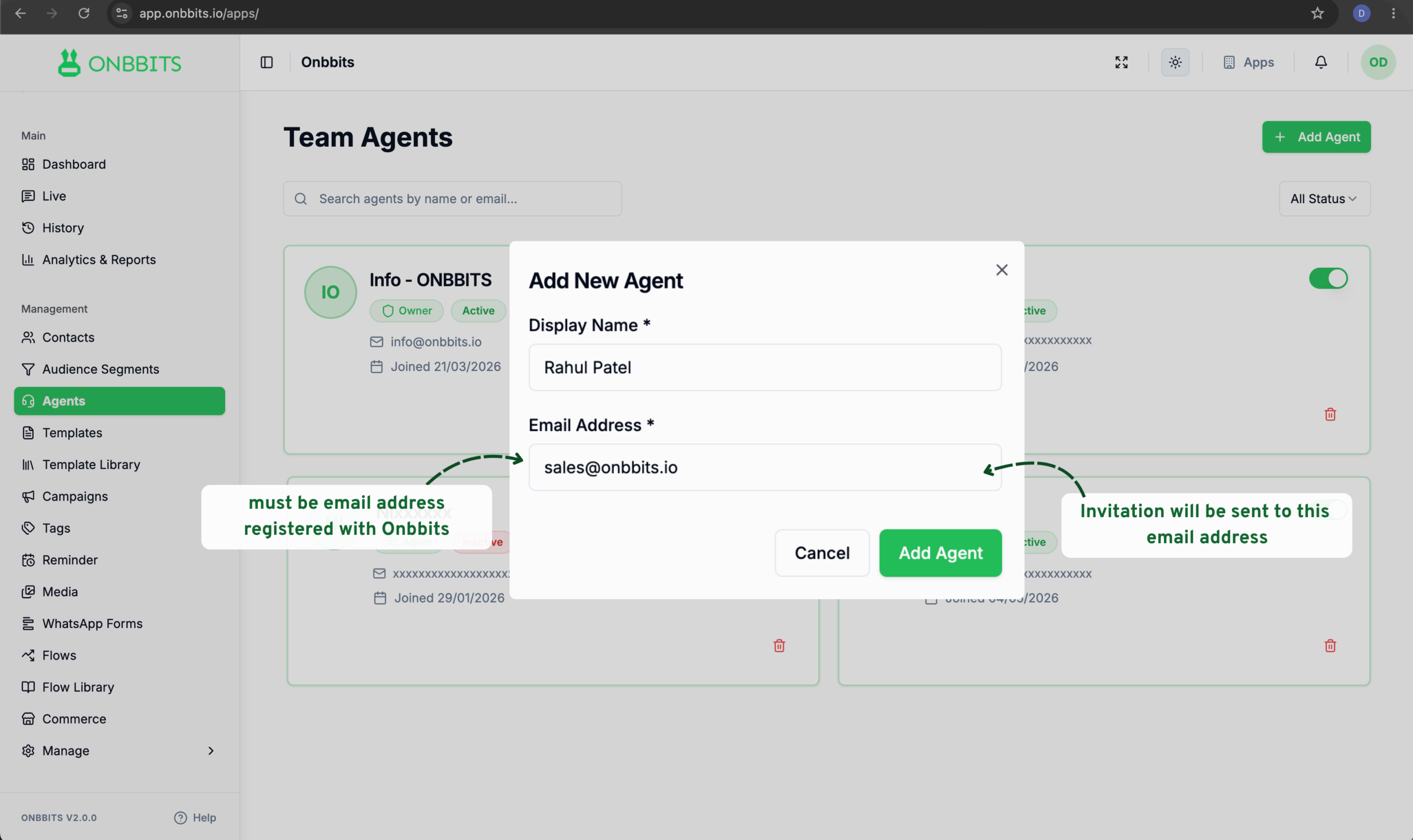
Add a New Agent

  1. In the left sidebar, under Management, click Agents.
  2. Click + Add Agent in the top right corner.
  3. Enter the agent’s name in the Display Name field.
  4. Enter the email address registered with Onbbits.
  5. Click Add Agent to send the invite.

After you add an Agent, they’ll receive an email with a link to accept the invitation. Their card shows as Inactive until they accept — once they do, it switches to Active and they can log in.
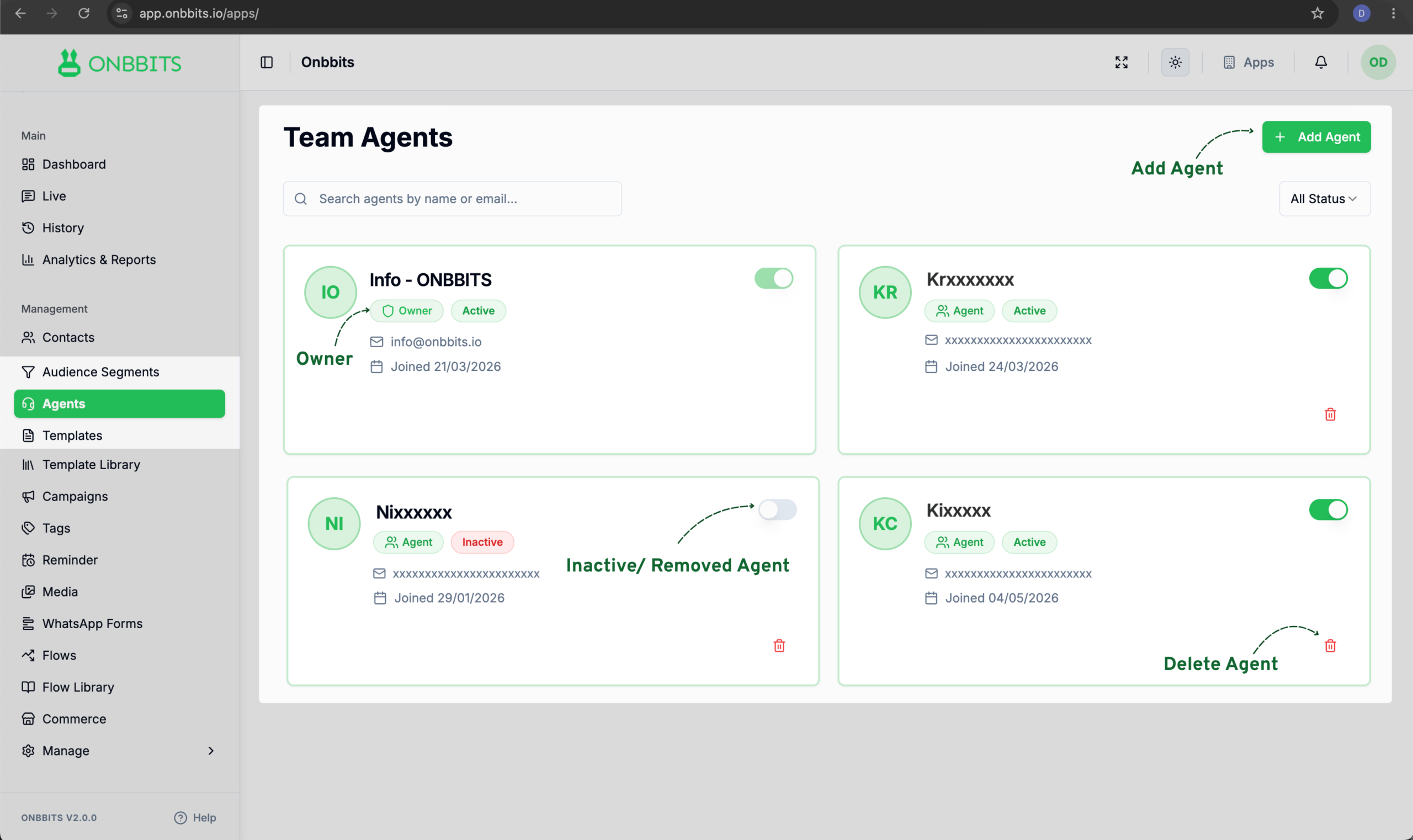
Enable or Disable an Agent

  1. Find the Agent’s card in the list.
  2. Click the toggle switch next to their name.
  3. Toggled on (green): the Agent is Active and can log in and use the app.
  4. Toggled off (grey): the Agent is Inactive — they temporarily lose access of the App, but nothing they created is affected.

Delete an Agent

  1. Go to the Agents page.
  2. Find the card for the Agent you want to delete.
  3. Click the trash icon on their card.
  4. Confirm the deletion when prompted.
  5. They can no longer access the App.
WARNING
Related Articles

What Is an Agent?

Still need help?

Our support team is ready to assist you.

ONBBITS Help Doc v1.0