
OVERVIEW
FEATURES
INTEGRATION
SUPPORT
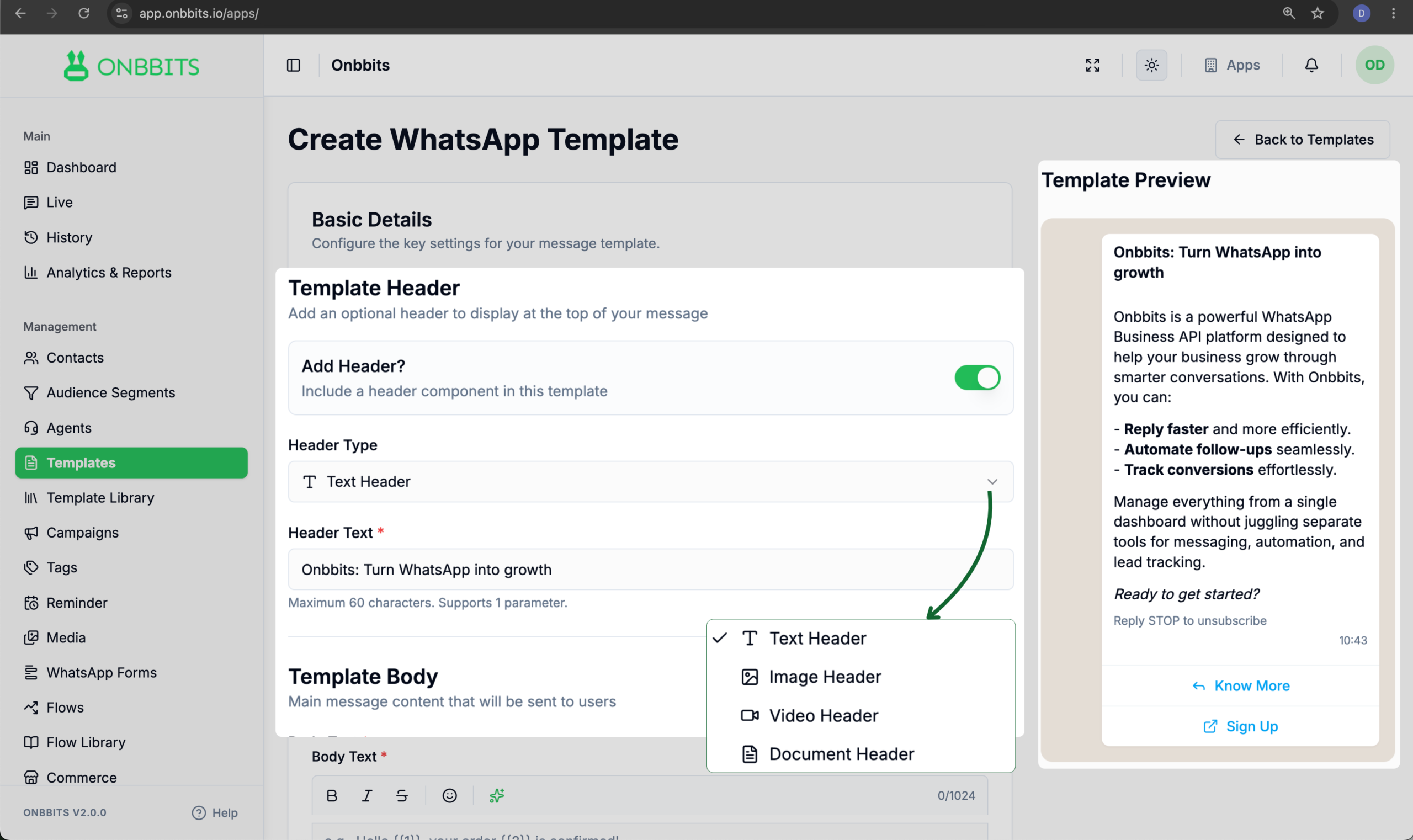
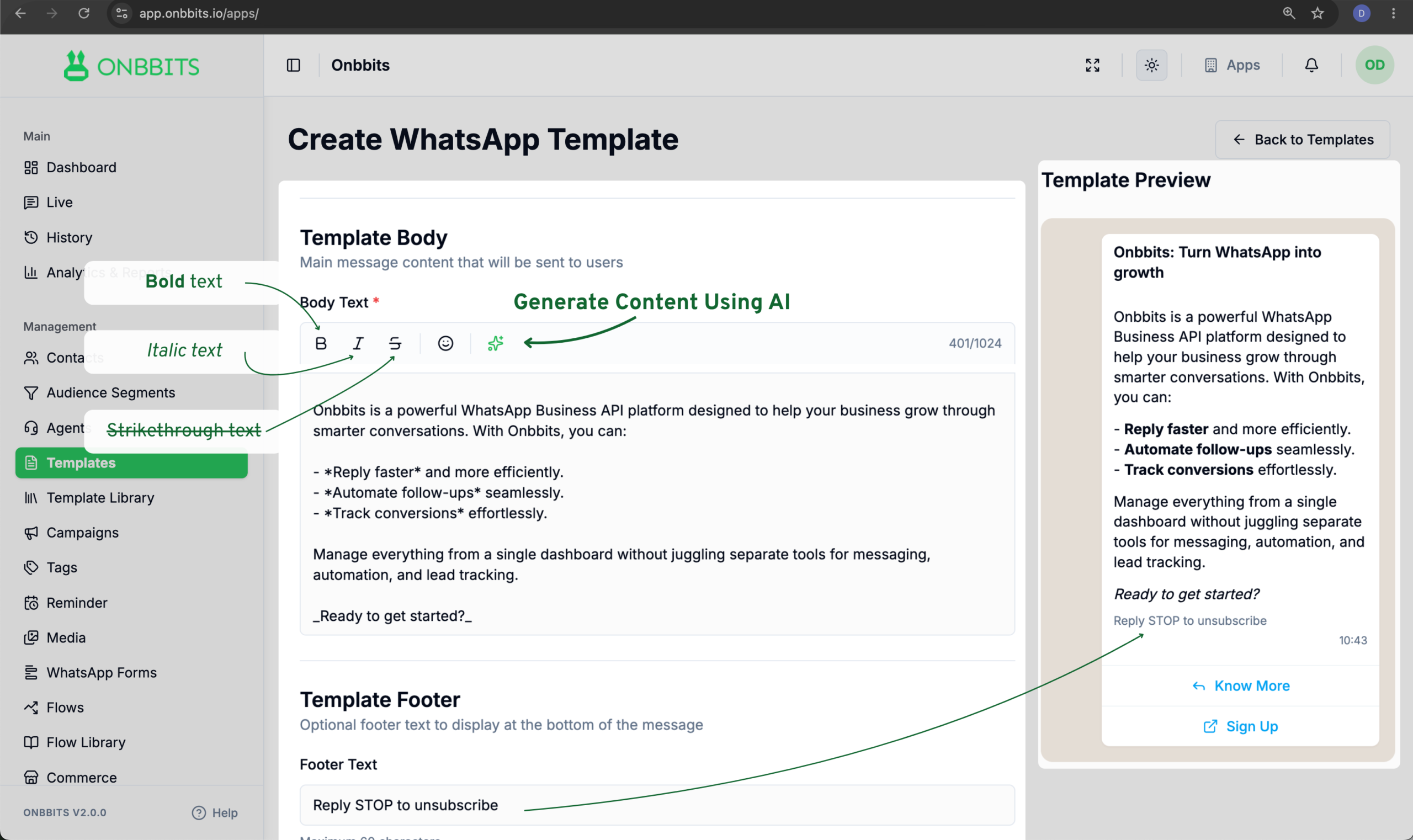
This guide walks you through creating a WhatsApp template in Onbbits, from filling in the basic details to adding buttons, and shows you how to edit it before you submit it for approval.
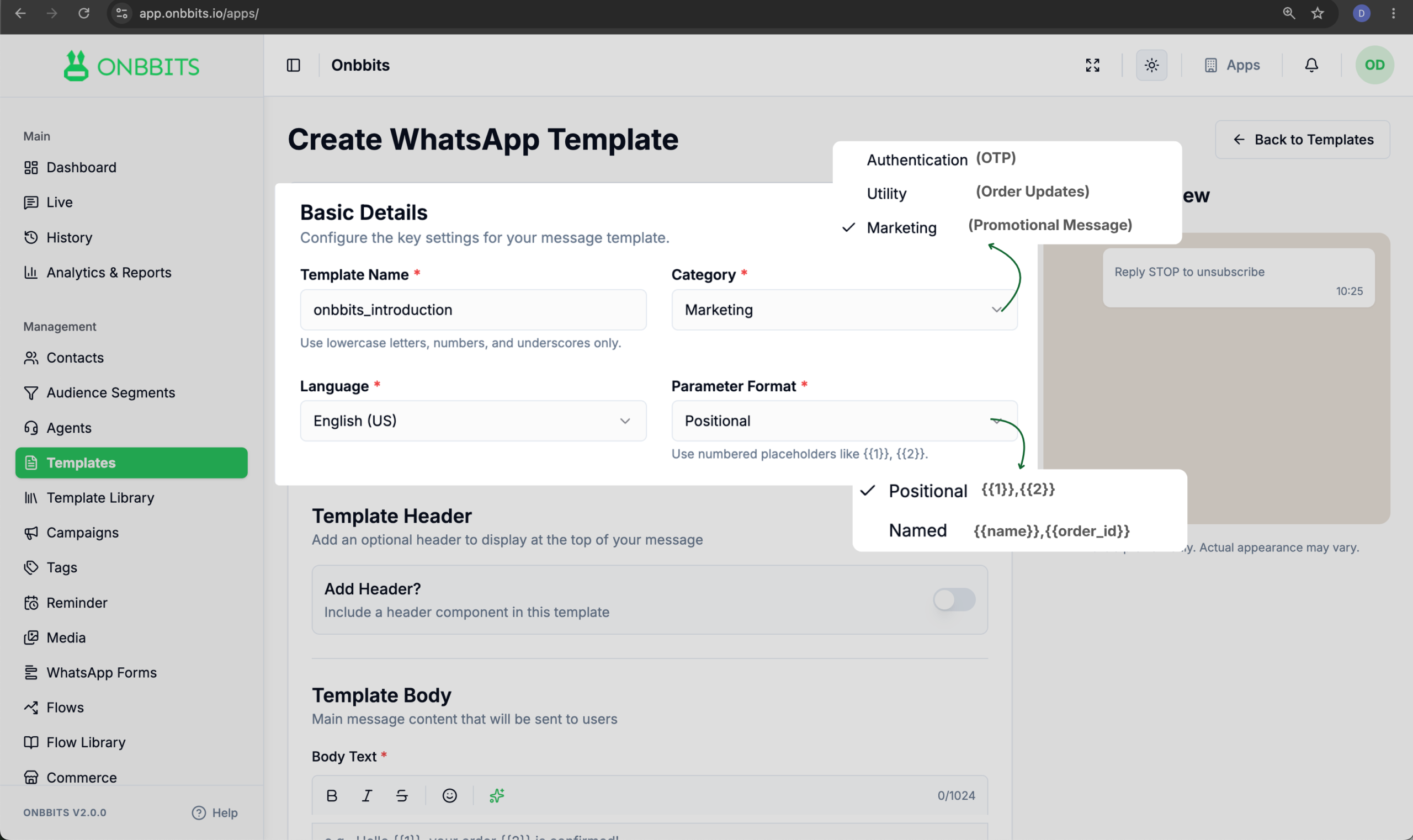
Make sure you know which category your template belongs to, since this affects what content you can include. If you’re not sure which one fits, check Template Categories & Approval Rules first.
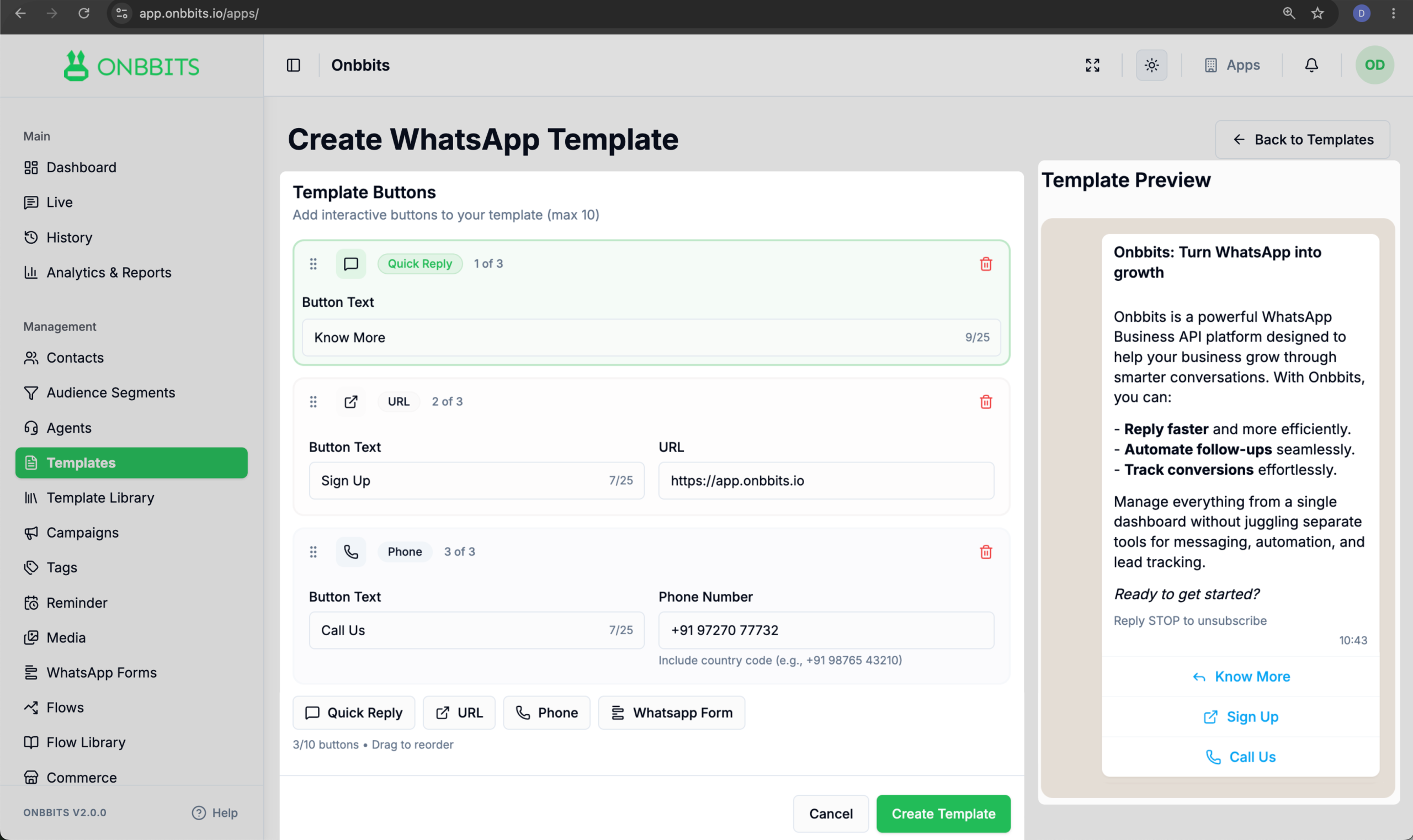
This saves your template as a Draft and takes you back to the Templates dashboard.
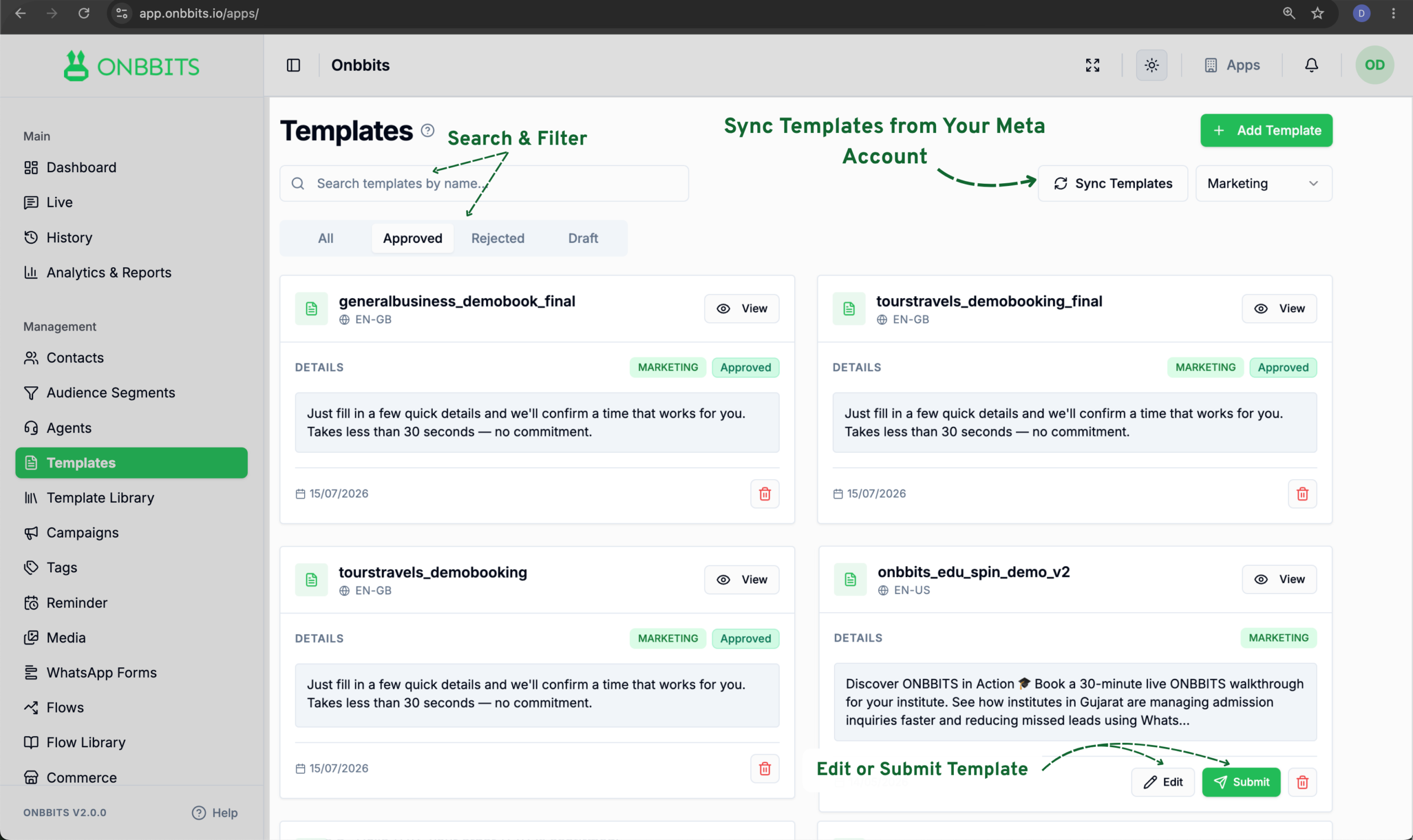
Your template’s status changes to Pending Review while Meta reviews it. You can track this in Template Categories & Approval Rules.
You can only edit a template while it’s still a Draft. To edit one, click Edit on the template card — this reopens the same form you used to create it, with all your details already filled in.
Still Have Questions? Visit Our FAQ Page
Our support team is ready to assist you.
© 2026 ONBBITS. All rights reserved.