
OVERVIEW
FEATURES
INTEGRATION
SUPPORT
A webhook automatically sends a Form’s submission data to your own server or API as soon as a customer submits it — useful if you want that data to land somewhere outside Onbbits, like your CRM or a custom system.
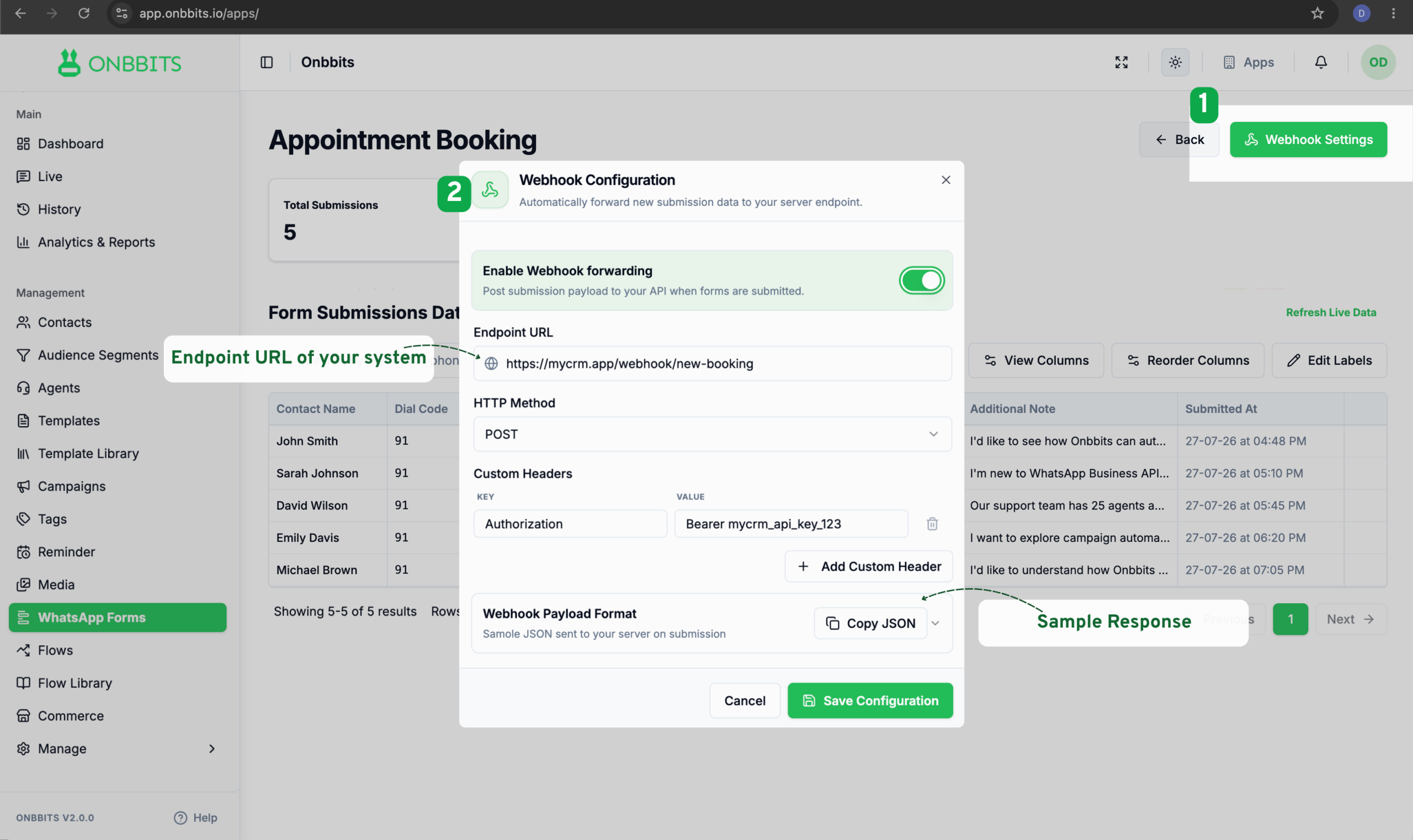
Here’s an example of the data your endpoint receives when a form is submitted:
					{
  "contact": {
    "name": "John Doe",
    "wa_id": "15551234567"
  },
  "data": {
    "full_name": "John Doe",
    "mobile_number": "15551234567",
    "address_line_1": "123 Main St",
    "address_line_2": "123 Main St",
    "landmark": "Sample Landmark",
    "pin_code": "Sample Pin_code",
    "city": "Sample City",
    "state": "Sample State",
    "delivery_notes": "Sample Delivery_notes"
  },
  "event": "whatsapp.form.submitted",
  "form": {
    "id": "c48364fe-b396-4c91-836f-4cc3562f06f4",
    "name": "Provide Delivery Address"
  },
  "timestamp": "2026-07-30T06:24:15.872Z",
  "version": "1.0"
}
From now on, every new submission on this form is automatically sent to your endpoint as soon as it comes in — you don’t need to manually export or check the Entries page for your server to receive it.
Still Have Questions? Visit Our FAQ Page
Our support team is ready to assist you.
© 2026 ONBBITS. All rights reserved.