This guide walks you through creating a new WhatsApp Form and opening it in the builder, ready for you to add fields.
Before You Begin
Steps to create WhatsApp Form
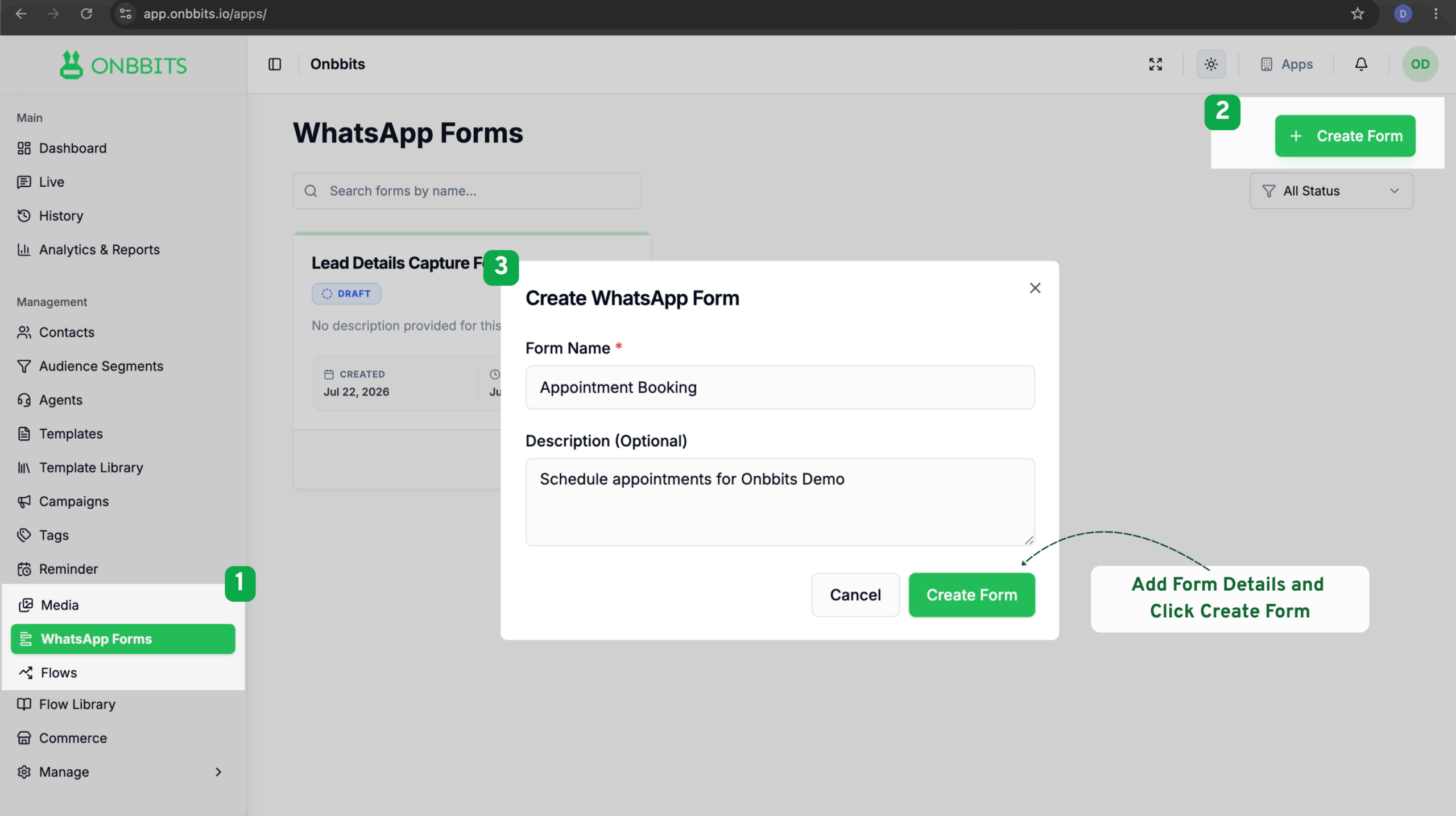
- In the left sidebar, click WhatsApp Forms.
- Click + Create Form in the top right corner.
- Enter a name for your form in the Form Name field.
- Optionally, add a short description under Description to note the form’s purpose.
- Click Create Form.
- Your new form appears on the WhatsApp Forms page with a Draft status. Click Edit on its card to open the form builder.
- Your form opens with a default Welcome screen already added. From here, you can add fields to this screen or click + Add Screen to add more screens.
- Click Save Form once you’ve finished making changes.
Your form is saved and ready for you to keep building. It stays in Draft status until you’re ready to use it — you can come back and edit it anytime from the WhatsApp Forms page.
Adding Elements
Inside the builder, the Elements panel gives you the pieces to build your screen. These fall into two groups:
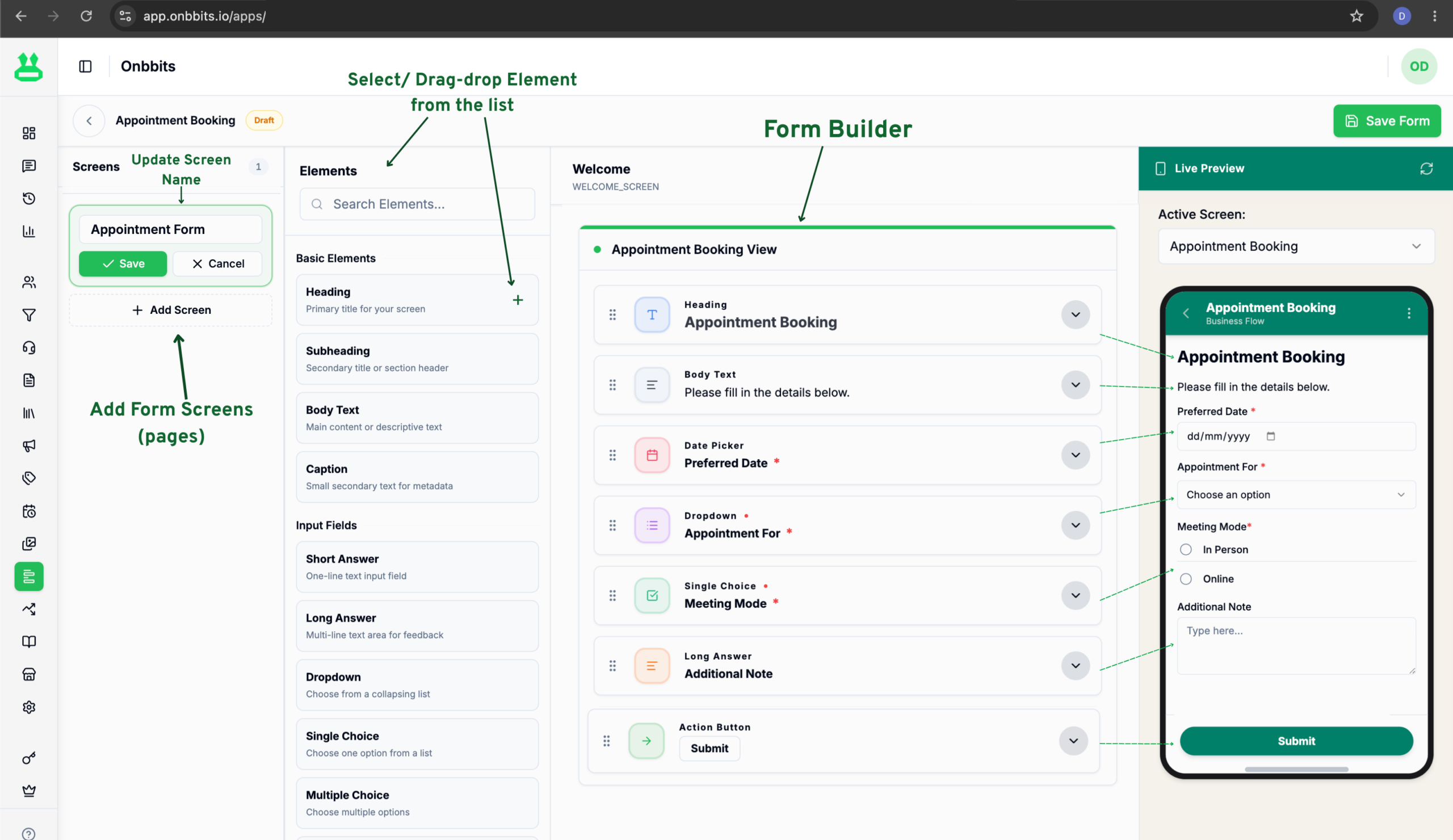
Drag an element onto your screen to add it, then use the Live Preview panel on the right to see exactly how it’ll look in WhatsApp. For a full breakdown of every element and when to use it, see Form Elements.
Submit a Form
Once your form is ready, you’ll need to submit it before it can be used.
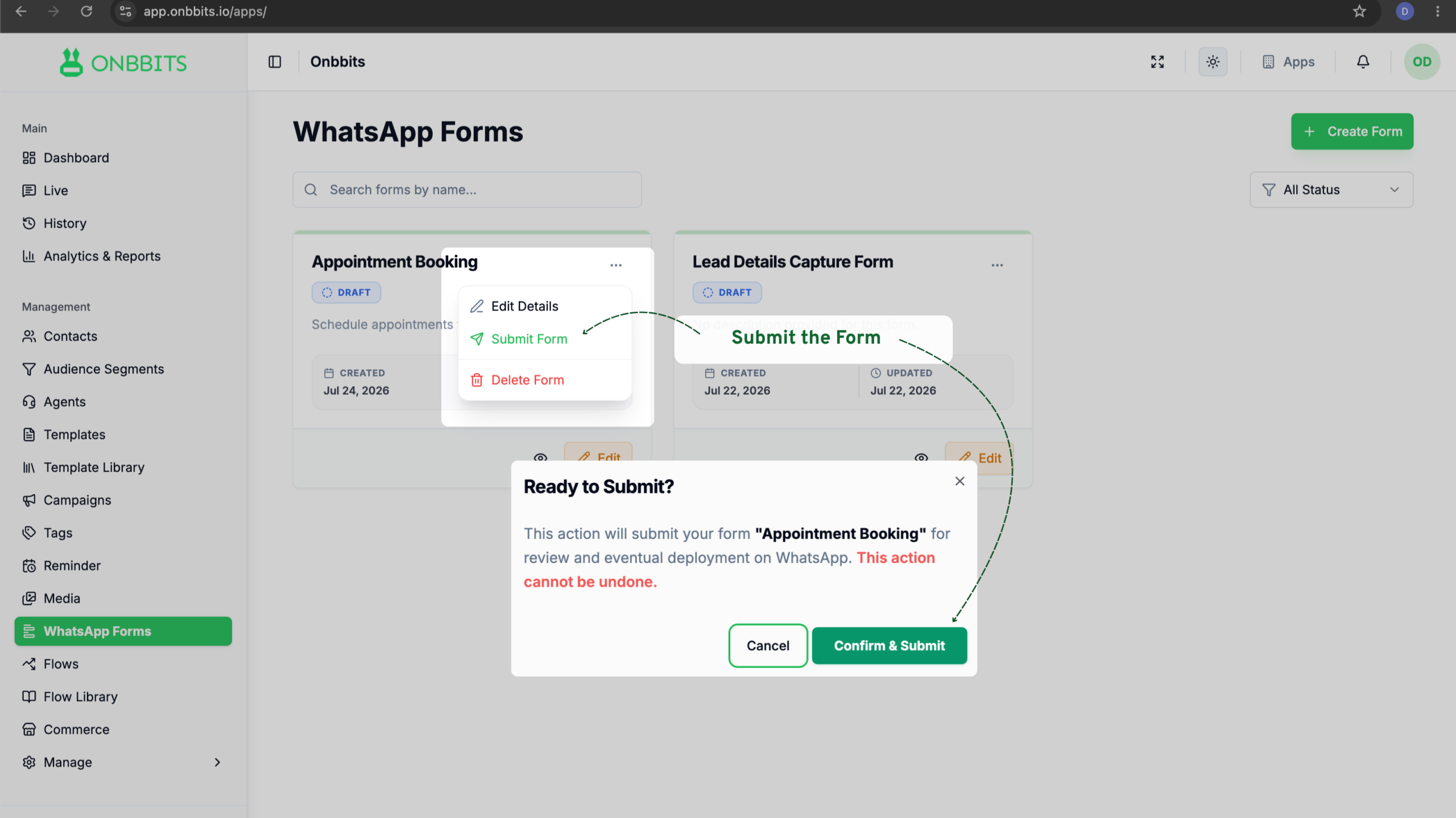
- On the WhatsApp Forms page, find your form’s card and click the ⋯ menu.
- Click Submit Form.
Your form’s status changes from Draft to Submitted, and an Entries button appears on its card.
Send a Form to a Contact
A Form is sent through a Template button, not directly from the Forms page. Once submitted, your form is ready to attach.
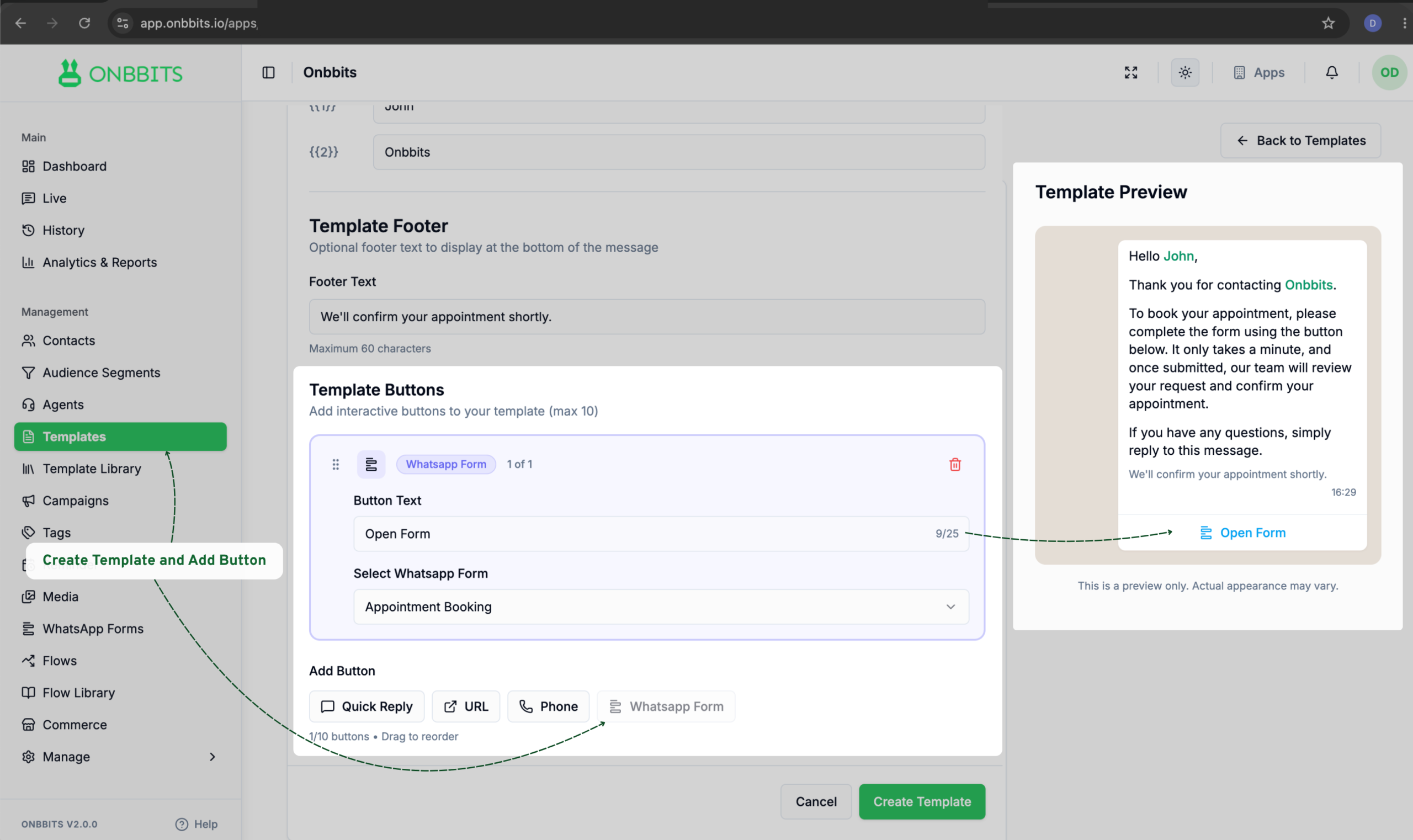
- Create or edit a Template, and under Template Buttons, click Add Button.
- Click WhatsApp Form.
- Enter the Button Text the customer will see.
- Under Select WhatsApp Form, choose the form you want to attach.
- Finish creating the template as usual, then send it to a contact through a Live Chat, History, Campaign or a Flow.
When the customer taps the button, the Form opens for them to fill out right inside the chat.
View Entries
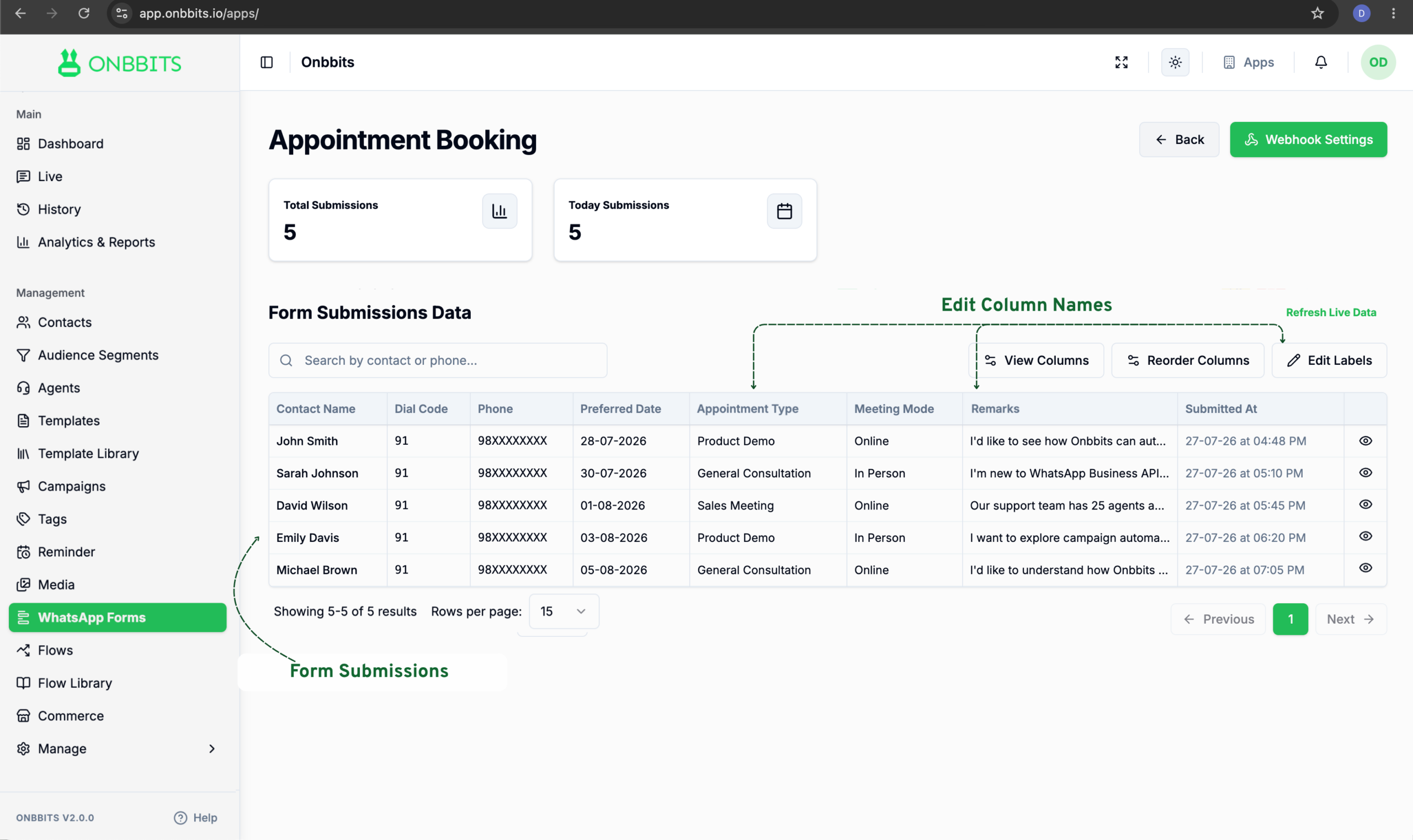
- On the WhatsApp Forms page, find a Submitted form and click Entries on its card.
- The Entries page shows your Total Submissions and Today Submissions, along with a table of every response — each field in your form becomes its own column.
- Use View Columns or Reorder Columns to change which fields are visible and in what order, or click Edit Labels to rename column headers for the table.
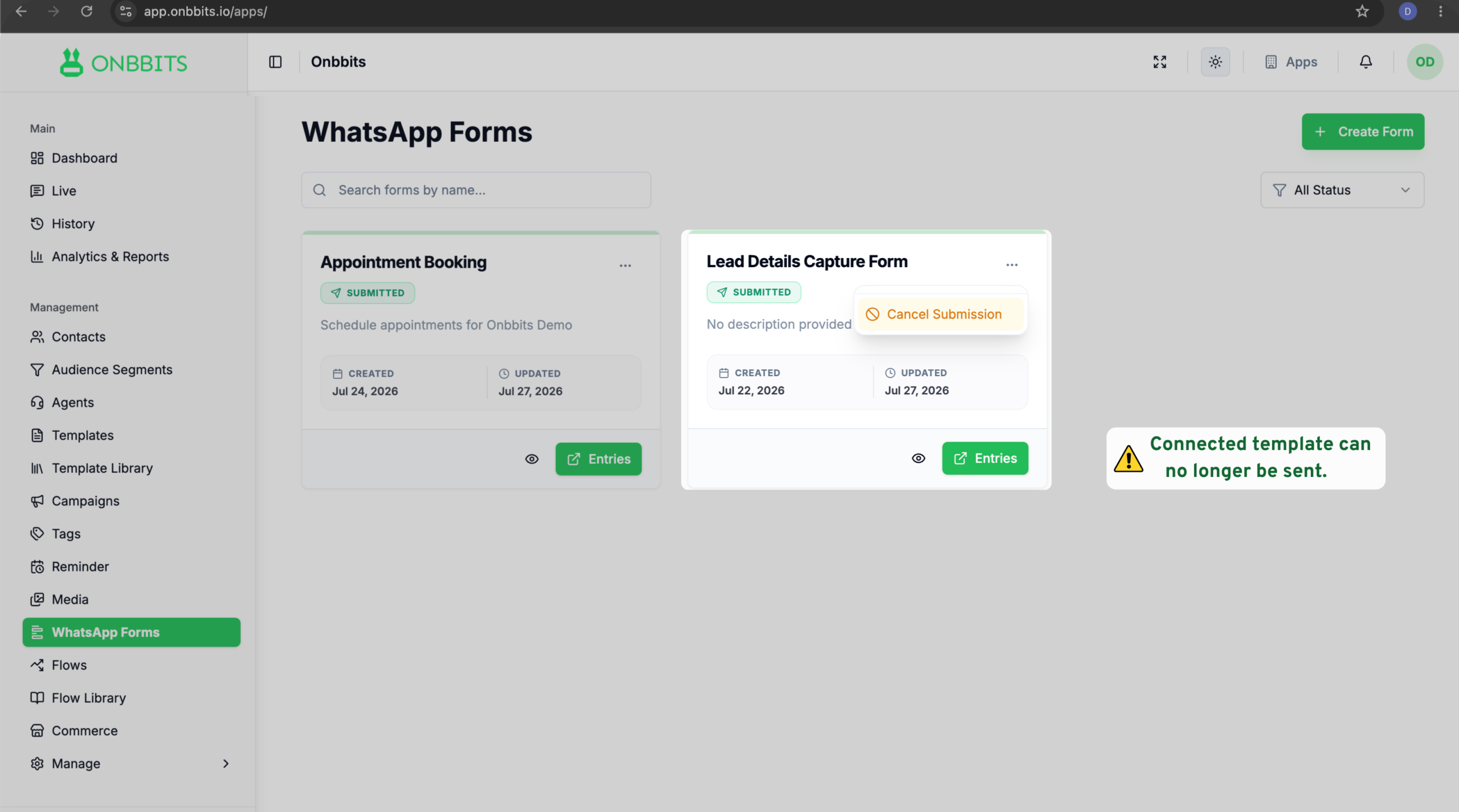
Cancel a Submission
- On the WhatsApp Forms page, find your submitted form and click the ⋯ menu.
- Click Cancel Submission.
The form’s status changes to Cancelled.
Related Articles