
How to Manage Chats in Onbbits

Once a conversation is active, you can start replying to customers, tagging conversations, and collaborating with your team. This article covers these actions and assumes the chat is already assigned to you.
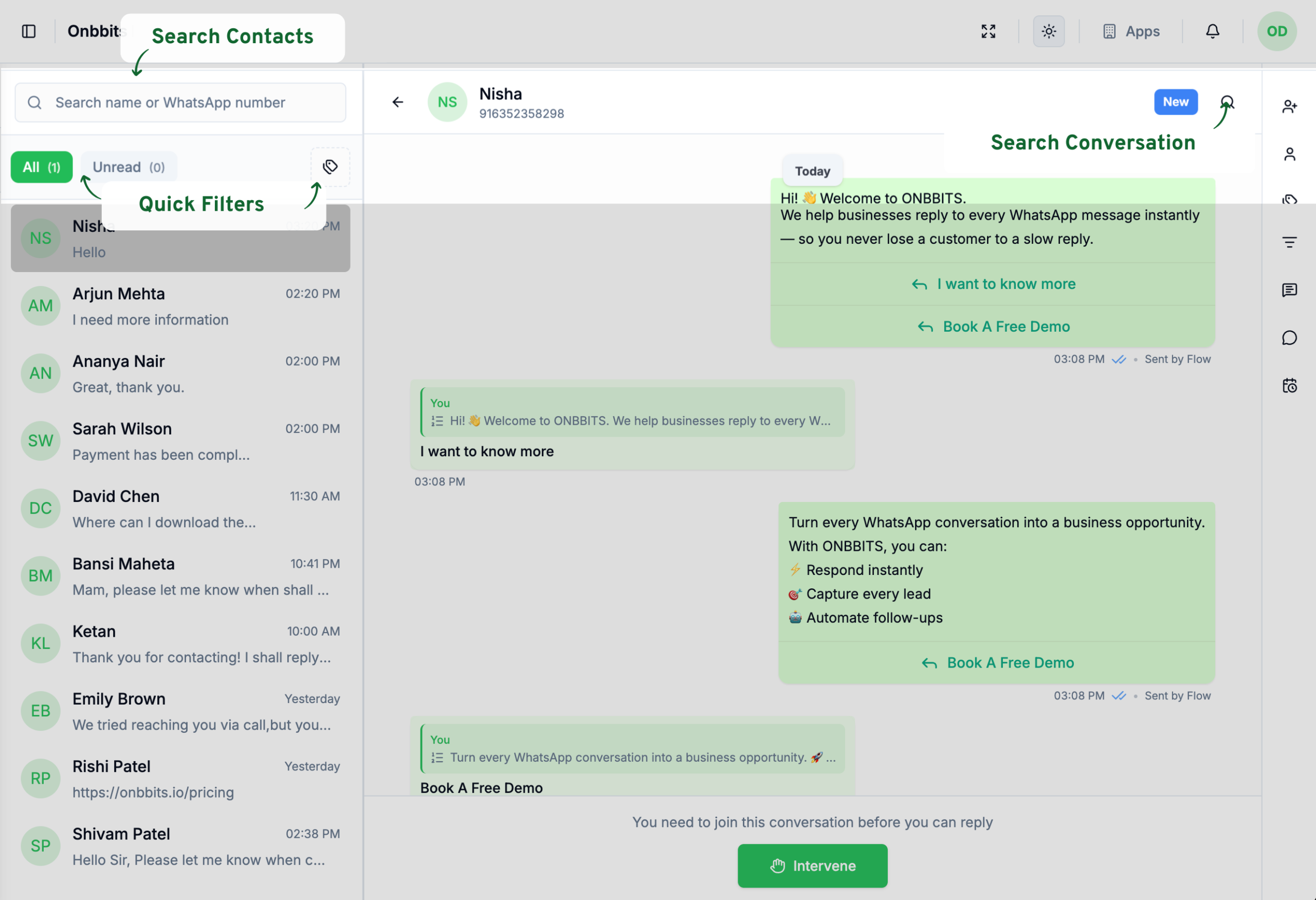
Finding a Conversation

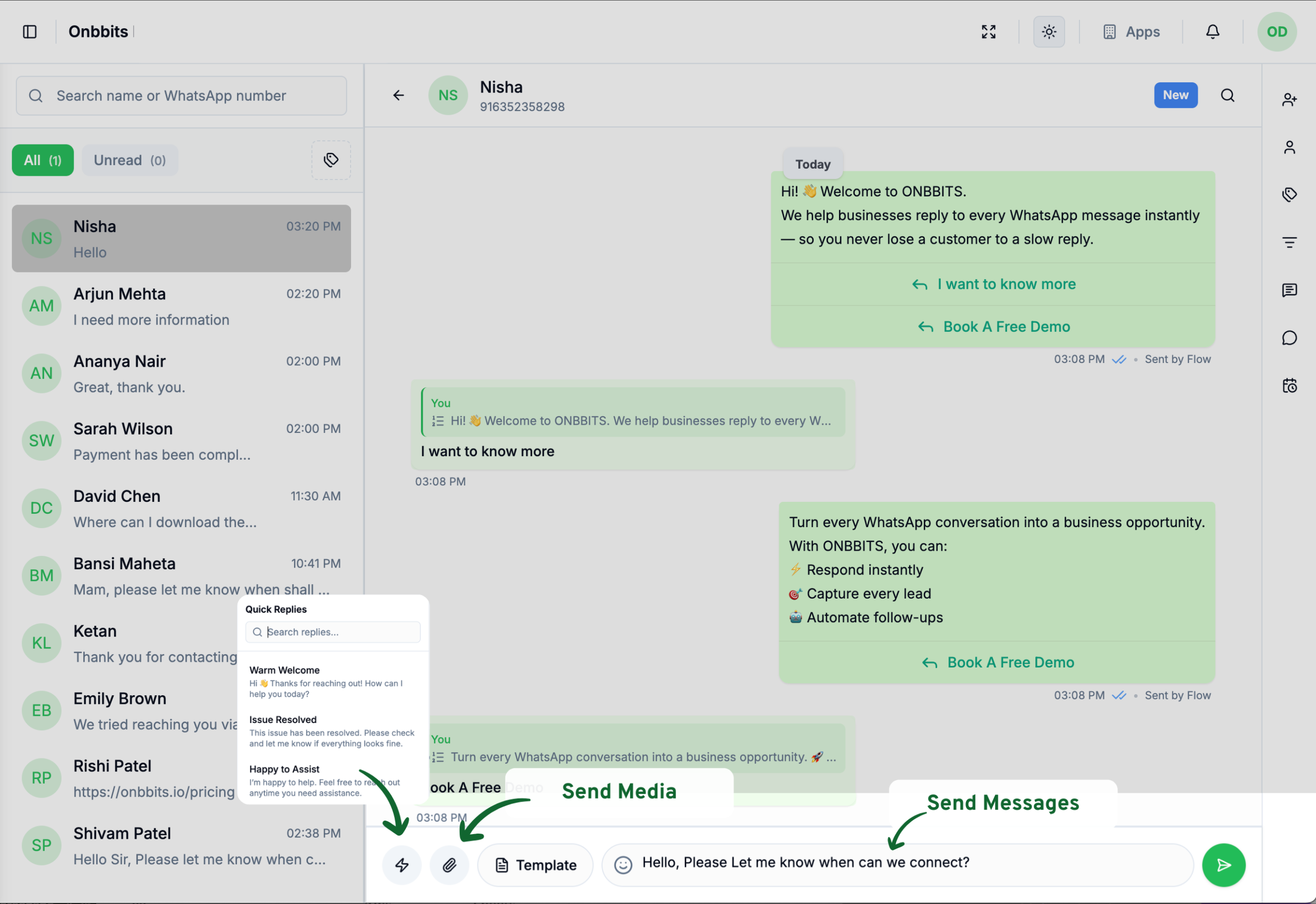
Sending a Free-Form Message

  1. Type your message in the Type a message… field at the bottom of the chat window.
  2. Tap the send arrow.

You can also tap the paperclip icon to attach media, or the lightning bolt icon to send a quick reply.
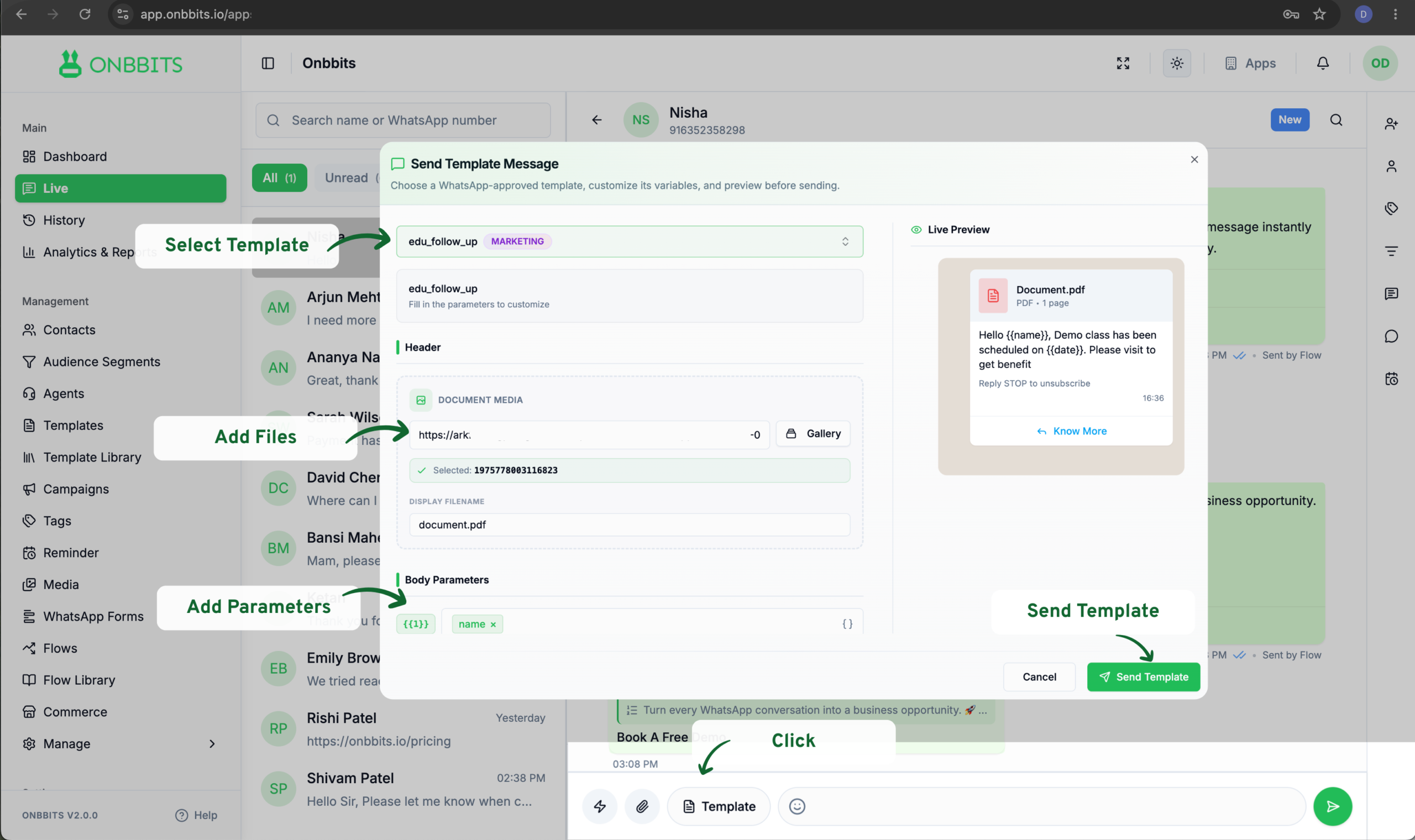
Sending a Template Message

  1. Open the chat.
  2. Tap Template in the message bar.
  3. Choose the template you want to send.
  4. Click Send Template.

Managing Tags

  1. Tap the tag icon in the right-side panel to open Tags.
  2. Under Available Tags, tap a tag to apply it to the chat.

Managing Attributes

  1. Tap the Attributes icon in the right-side panel.
  2. Enter or update a value in any field, such as Company, Age, or Location.

Adding a Comment

Comments are internal notes. They’re never sent to the customer, and any agent can see them
  1. Tap the Comments icon in the right-side panel.
  2. Add your note.

Existing comments show who wrote them and when, so your team always has context before picking up a conversation.

Tagging a Teammate

Use Agent Messages to loop in a teammate on a specific chat. They’ll get a notification.
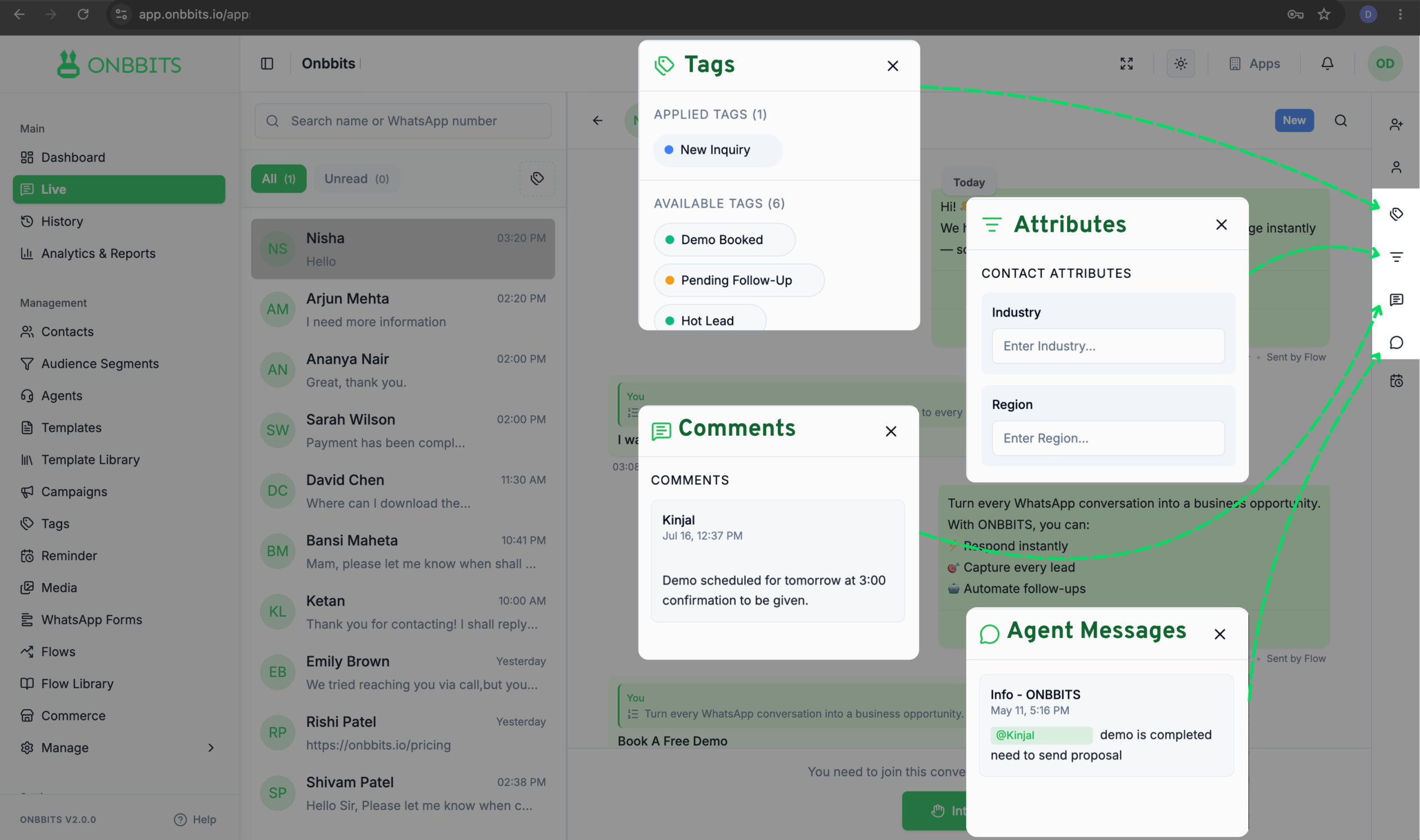
  1. Tap the Agent Messages icon in the right-side panel.
  2. Type @ to tag a teammate and add your message.

Managing Chat Status

Chat status indicates the current stage of a conversation, helping your team track its progress.

Related Articles

Live Chat & History: Understanding Your Onbbits Inbox

How to Assign Chats to Agents in Onbbits

Still need help?

Our support team is ready to assist you.

© 2026 ONBBITS. All rights reserved.